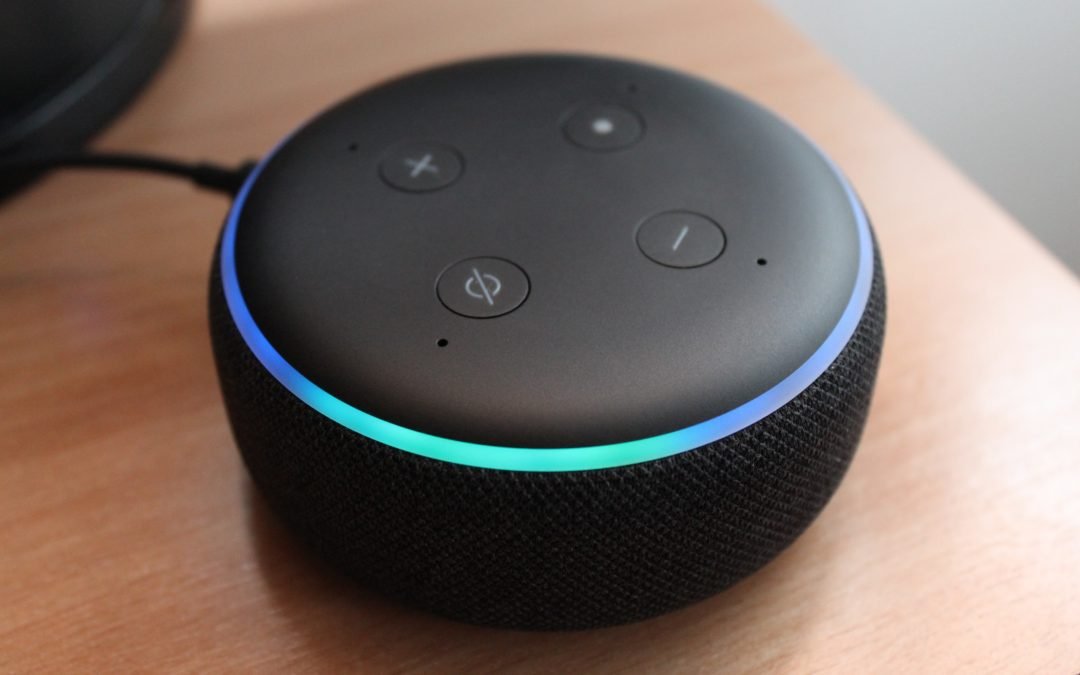
‘Nana, my mom grounded me to my room.’ This phone call from our grandson using his Alexa, who lives states away from us, was the highlight of my wife’s week.
My 6-year-old grandson didn’t obey his mom and got sent to his room.
With #Alexa in the room with him, it’s as easy as saying ‘Alexa, call Nana’, and he has direct access to a listening ear who wants to hear all about how unfair his mom is.
Especially during these days of ‘shelter-in-place’ because of #covid19 – these devices are a great way to connect kids who don’t have cell phones to grandparents!
Yes, even our adult kids have fun and make use of smart home devices.
We also caught Gabe recently going to bed listening to a sweet child’s bedtime story, (he adamantly denies it), but our Google history caught him saying ‘Hey, Google, tell me a story’.
Man, I wish I had Google as a kid growing up! It would have been a game-changer in so many ways.
For continued advice and learnings on how to help your family stay safe and smart with the technology you use, follow
Especially now with shelter-in-place due to #COVID-19, our smart home devices are keeping our minds sharp with fun interactive trivia type games.
Inviting Google AND Alexa into our home was a life changer.
Every now and then, I’ll be sharing a few things Alice, Gabe, and I love about our smart home devices.
Alice’s favorite: Just by saying ‘Goodnight,’ our Google friend tells Alice the weather forecast for the next day, reminds her of what is on her calendar, and sets her morning alarm.
To-do lists and shopping lists are also at the top of her favorites! Almost daily, I hear her chatting it up with Google as she builds out her shopping and to-do lists.
Her next favorite is checking the weather as she packs her bag for whatever business trip is on her calendar for the week. One week I heard Google advise her on the weather conditions in New York, Texas, and Minnesota. Yes, all that travel in one week and crazy diverse temperatures. This gal of mine is the master packer.
And catching Gabe ‘cheating’ on his homework is another favorite of Alice’s. Yes, this happens, more than most would think. Her all-time favorite is when she catches ME cheat on Gabe’s homework. I try my best to help him, and when I can’t figure out the answer, Google almost always saves the day.
For continued advice and learnings on how to help your family stay safe and smart with the technology you use, follow
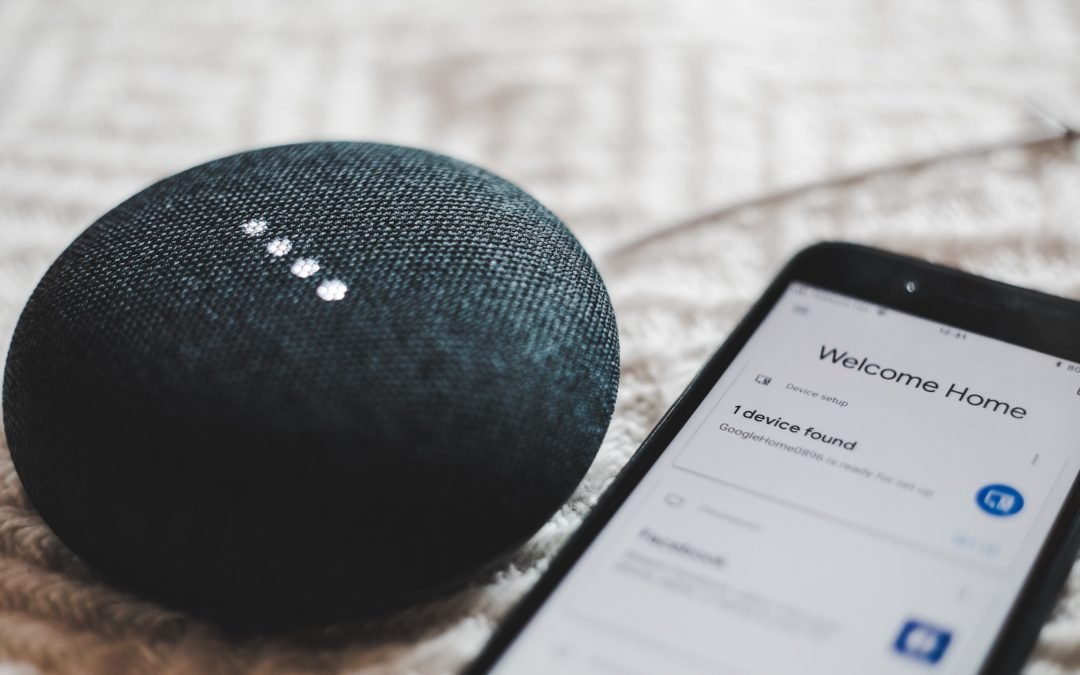
If you’ve been following my posts, I’ve shared quite a few ways to keep your personal information and conversations safe from Google, Siri, and Alexa. Now for those who want to truly Lockdown their Google Home, here are the next steps.
Now please be careful if you choose this route as it may cause some hiccups with how well your Google device functions going forward.
But for those who want to go to the extreme to ensure max privacy but still enjoy ‘some’ of the functions available on their Google Assistant give this a try to Lockdown your Google Home.
From the main GOOGLE ASSISTANT ACTIVITY PAGE
Go ahead and scroll down, and you’ll see your WEB & APP ACTIVITY is ON
Now tap CHANGE SETTING.
Then turn off the toggle beside WEB & APP ACTIVITY.
Please know that changing this setting won’t delete any of your personal data from Google; it only stops Google Assistant from recording more data going forward.
For continued advice and learnings on how to help your family stay safe and smart with the technology you use, follow Dale Dumbs IT Down on Instagram Dale Dumbs IT Down on Youtube
Learn more about the why behind my journey of helping families stay safe and smart with the technology they use at https://www.daledumbsitdown.com/
Check it out! Take a look at all the info your Google Assistant knows about you. Open your GOOGLE HOME app. Tap the settings gear in the lower right corner. Under the GOOGLE ASSISTANT heading, tap MORE SETTINGS. Select YOU from the menu bar at the top. Tap YOUR DATA IN THE ASSISTANT.
Enjoy the read, as you review all the pieces of information Google Assistant know about you and what information it has keeping about you. Don’t worry- you can take it all back!
You can delete items one at a time by tapping the trash can icon beside each item. Or while you’re at it- take it ALL back. When you tap YOUR DATA IN THE ASSISTANT, find MY ACTIVITY listed under YOUR ASSISTANT ACTIVITY. To the right of the search bar at the top of the page, tap the icon of THREE STACKED DOTS. Tap DELETE ACTIVITY BY > ALL-TIME then tap the DELETE to confirm.
There you go! You took it all back, well for now anyway. Who knows what the future will uncover. As always – stay safe by keeping your data and personal information secure, ‘well, as secure as you can’.
If you don’t use Google Assistant I also have a blog post where I show you how to delete your voice recordings from Amazon Alexa HERE
I encourage you to click the link and ‘subscribe’ to our newsletter. Our newsletter is designed to help parents stay educated on the latest and greatest technology trends.
For continued advice and learnings on how to help your family stay safe and smart with the technology you use, follow Dale Dumbs IT Down on Instagram Dale Dumbs IT Down on Youtube
Learn more about the why behind my journey of helping families stay safe and smart with the technology they use at https://www.daledumbsitdown.com/
“Sticks and stones will break your bones, and words will come back to haunt you!” All of us have had ‘those’ days that we wish we could rewind time and take back things we said or did. What happens when your Alexa is always listening? How can we delete Alexa’s memory?
While words shared cannot be erased from human memories, Amazon has found a way to do just that to help you retain privacy and erase her memory bank. Just this year, Amazon announced two new Alexa commands that let you delete your voice transcripts. Simply say, “Alexa, delete everything I said today” or ‘Alexa, delete what I just said.”
Now, if you want to delete your entire history, open the Alexa app and go to SETTINGS > ALEXA PRIVACY > REVIEW VOICE HISTORY > DELETE ALL RECORDINGS FOR ALL HISTORY.
Now for you Apple users, it’s time to take it back!
For all you Apple lovers– it’s time to take back all those horrible things you said n front of our little fruit spies. Time to delete all the private and personal conversations you unknowingly shared while Siri sat there and listened (and recorded). With the iOS 13.2 update, you can delete all of your recordings. Open your SETTINGS > SIRI & SEARCH > SIRI & DICTATION HISTORY > and select DELETE SIRI & DICTATION HISTORY.
That should allow you to delete all of your private and personal voice transcripts. Keep watch I will be posting another blog post in helping you delete your voice transcripts from Google as well.
For continued advice and learnings on how to help your family stay safe and smart with the technology you use, follow
Yes, you read that right! I know that might be a shock to you that these digital assistants are actually spying on us. They kind of have to. Think about it for a second, how does Alexa know that you’ve said “Hey Alexa” or how does Siri know when to give you an answer. It’s because these devices are continually listening to their environment, waiting for the keywords to be spoken.
Good news though, there is finally a way to retain privacy but still enjoy the benefits of virtual assistants like Google, Alexa, and Siri. Okay, Okay…Yes, I’m a skeptic and not quite ready to say that all is good on this front but it is certainly a step in the right direction. For improved security follow these simple directions.
Apple: Last August, Apple announced it would no longer listen to Siri recordings without your permission. The company can only receive your audio data if you choose to opt-in. To make sure you didn’t opt-in go to your iPhone’s SETTINGS>PRIVACY>ANALYTICS AND IMPROVEMENTS>TURN OFF IMPROVE SIRI & DICTATION.
Google: Google has suspended a human review of audio recordings. However, if you’re still worried about it go to myaccount.google.com > WEB & APP ACTIVITY. Next, uncheck the box that says INCLUDE VOICE AND AUDIO RECORDINGS.
Amazon: Amazon recently put a stop to their listening to your voice recordings. But just to be sure, go to the Alexa app, go to SETTINGS > ALEXA PRIVACY > MANAGE YOUR ALEXA DATA. From here turn off the toggle switch that says ‘Use Voice Recordings to Improve Amazon Services to Develop New Features.”
You’d think they just let us say “Hey Google, mind your own business”. If you have friends or family members who could benefit from the info shared here please forward and share so everyone can make sure their privacy settings are set correctly. Keeping you safe and smart with the technology you use every day- this is my gig and what I love to do. Thanks for following.