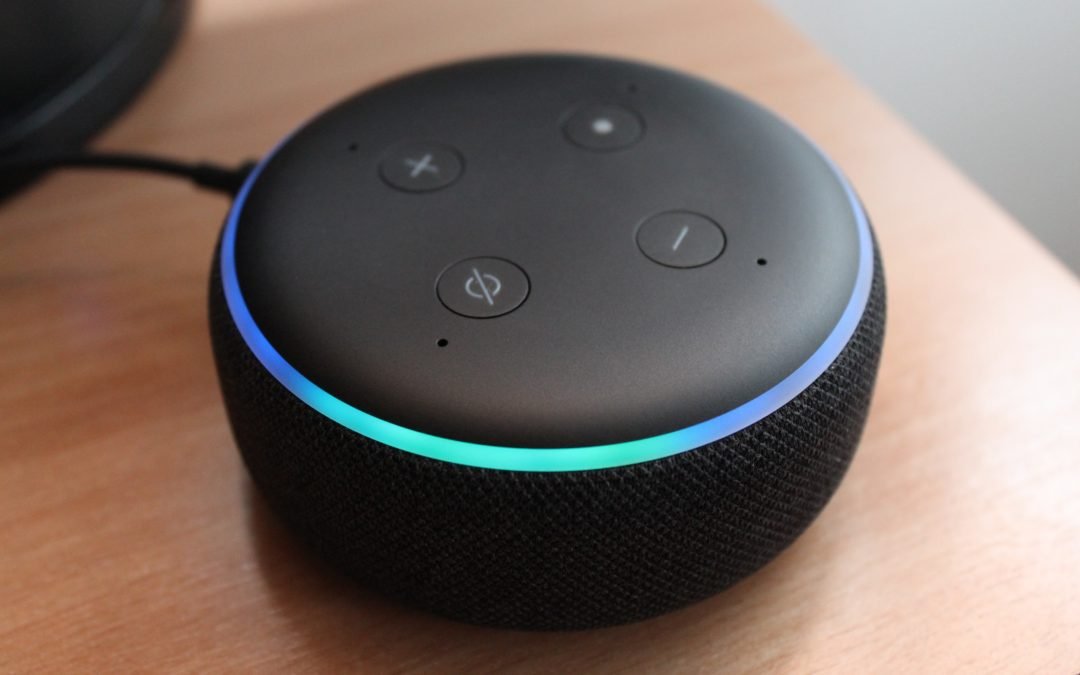
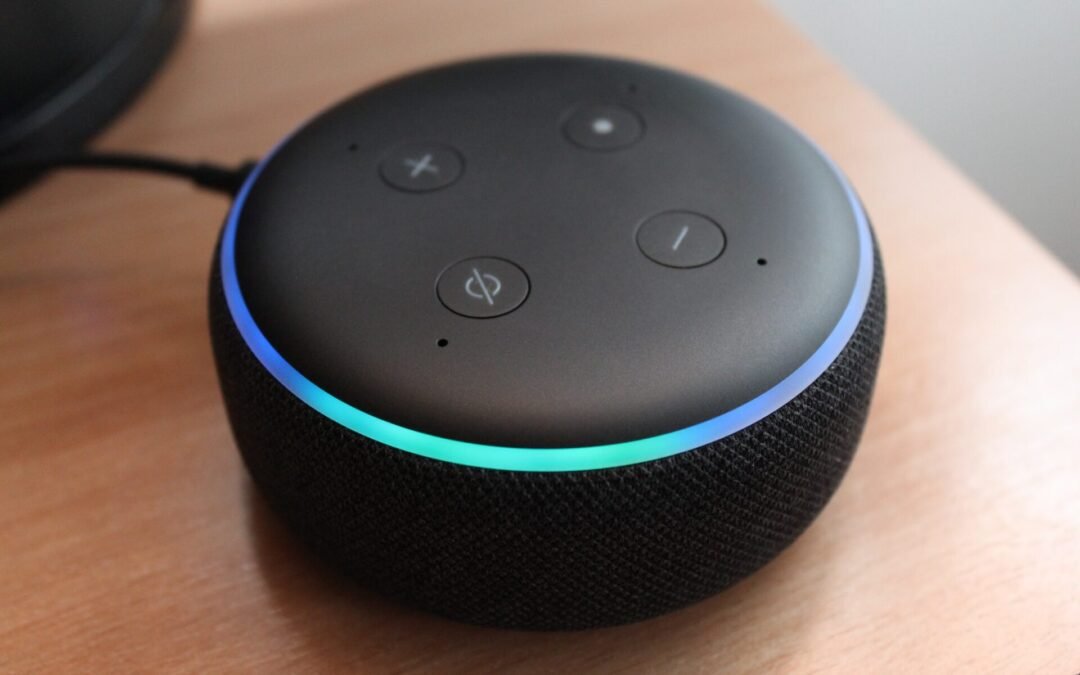
Did you know Amazon is using your internet to create its own network? Here’s why you want to opt-out of Amazon Sidewalk right now. When I first heard about this, I was a little shocked, but after thinking about it I can understand why Amazon is doing it. Regardless, it’s probably a very reasonable idea to opt out of Amazon Sidewalk. We wanted to walk you through how they’re doing it and how you can easily opt-out of the Amazon Sidewalk program.
Amazon Sidewalk 101
Amazon uses its smart devices to create its own mesh network (encrypted three levels deep), so it can keep your devices (and those around you that aren’t yours) always connected to the internet. Essentially, even if your internet service goes out, these Amazon devices can still stay connected to the internet through this mesh network provided via Amazon Sidewalk. It’s a brilliant concept when you think about it. Is it that secure? As we mentioned above, Sidewalk features three layers of encryption, so the chances of hackers accessing that raw data in their mesh network is close to nil. Let’s be real though, hackers are smart and hackers are some of the most talented and creative people I’ve ever met, so to them this “uber high-tech, ultra-encrypted network” scream of opportunity, so I’m hesitant to just hand over my internet sharing to Amazon.
Along those same lines of data, security, and technology…it’s scary to think that Amazon has a technology hidden inside of millions of homes out there with a sizable amount of those homes having no clue what Amazon (how Amazon) is using their internet for. Having the ability to use your personal internet connection with your neighbor’s devices (for the most part without your consent) feels like shady business on the side of Amazon. I have seen a popped-up message in the Alexa app one time when setting up a new Amazon device, but I would hardly constitute that as clear messaging on what Sidewalk is doing. In a test, I asked a few friends if they knew Amazon was using their internet to share it with their neighbor’s Amazon devices. They were really shocked (and some mad) that Amazon was doing this.
Let’s walk you through what all this is. First, last year Amazon turned on Amazon Sidewalk for everyone that has an Amazon device (mostly Echo smart speakers, Echo dots, Ring security cameras, etc). It was built into their devices a handful of years back, so they’ve been planning on launching this for a while (we guess four years at least). Amazon is able to leverage Bluetooth technology along with its Amazon smart devices to create bridges to keep everything connected. By definition, it is their own mesh network. You just have to supply the internet (and your neighbors are supplying it as well).
Like we said, it’s impressive technology with a potential range of up to a half-mile. I could see why you’d want to use Amazon Sidewalk. For optimal home security, you really need those home security devices to always stay connected to send you notifications and alerts (and to keep a record). This does raise a little controversy in the fact that it can share your internet bandwidth with the neighborhood though. And because of that, we wanted to show you how to opt out of Amazon Sidewalk.
How Do I Turn Off Amazon Sidewalk
You can turn off Amazon Sidewalk in 5 clicks or less! It’s so easy and you don’t have to spend a ton of time finding where it is. This can literally take you maybe a minute. If you don’t see these options we’ve outlined below then you most likely don’t have an Amazon Sidewalk device. You’ll need at least a third-gen or newer Echo or Echo Dot and newer versions of Echo Show and Ring cams. We’re going to want to open the Alexa App on your smartphone to turn this off. From here, tap on the More menu in the bottom right.
Step 1: Tap on the Setting and Account Settings
Step 2: Tap on Amazon Sidewalk
Step 3: Make sure Enabled is selected to “Disabled”.
What’s nice about turning off Amazon Sidewalk is if you turn off Sidewalk in your Alexa app, it will cover turning it off on all devices for that account. Another thing to be aware of when you turn Amazon Sidewalk off–since you won’t be sharing your network with your neighbors, you won’t be able to access the Sidewalk network for your devices if your network drops. Again, turning it off is entirely your decision. If you want your devices to stay connected all the time to the internet in case yours goes down, it might not be a bad idea to leave enabled. As for me, my internet service has gone down twice in the last year and it was only for a brief moment and in the middle of the night. Because of that, we’ve disabled Amazon Sidewalk for now until we find a solid reason why we need it enabled.
Do you really need to know what is happening with your home network? Are you really at risk for not monitoring it? You’d be surprised by what dangers are lurking out there. It always amazes me when I come across a family relative, friend, or acquaintance that is completely aloof to how the internet operates in their home. Numerous times, I’ve encountered a home where the WiFi connection isn’t secure with a password and it baffles me, even causes me a little anxiety. I’d argue that it’s the responsibility of the internet provider to at least create a password to make someone’s network secure, but I digress. We created a list of questions every parent (actually every homeowner) should know as it relates to their home network. Don’t worry, we’re not going to throw out some technobabble jargon to confuse you. We don’t care about sounding smart. We care about helping you. We’ll keep this as dumb simple as possible, so you can have some actionable things to do after reading this.
What Is A Home Network?
Before we get into the questions you need to have a handle on, let’s just start with the basics here because if you aren’t monitoring your home network, you might not even know what it is. This is really easy. A home network is a group of devices that connect to the internet in your home. Those groups of devices could be laptops, computers, iPods, tablets, Amazon Echos, gaming systems, printers, smartphones, smartwatches…anything that connects to your internet. So when we say “Home network”, this is what we’re referring to. It’s everything. Simple, right?
Three Important Questions Every Parent (Home Owner) Should Be Asking
There are more than three important questions you should have a grasp on when it comes to monitoring your home network, but we wanted to focus on the three most important and easy-to-solve questions. I’d even add to this that you should know the answers to these questions or at least know how to access those answers fairly quickly. We’re going to carefully go through each of these questions and dive into why you should know each one and why each one is important.
Do You Know What Devices Are Connected To Your Home Network?
If your first gut reaction is, “I have no clue and I have no clue how to find out.” Then keep reading! Don’t want to freak you out, but how sure are you that your neighbor isn’t streaming off your internet connection? Knowing what devices are connected is definitely one of the most important things to know and understand. Your home internet is important because it provides the connection for all of your devices in your home to the outside world of the web. If you have devices that are not connected to your home network, such as a laptop that you take with you on trips, then those devices are vulnerable to anyone who might be using the same public networks as you. And when those devices connect to your home network, there are security risks. That’s just one example among many.
By knowing what devices are connected to your home network, you can better protect yourself by setting up firewalls and other security measures on your home network. You can also set parental controls on specific devices that are connected to your network, which can help protect your children from inappropriate content online.
Do You Know Which Websites & Apps Are Being Accessed By Your Home Network?
You might think this question is the same as the first, but they are very different. Knowing what those devices connected to your network are accessing is another very important thing for you to know. For starters, you should want to know the type of content and media the devices connected to your home network are accessing. No judgments here, but it’s downright scary what people look at and consume on the internet. In some cases, you might be held liable for what someone on your home network is accessing. So you should care. The Communications Decency Act gives you a little protection, but you don’t want to deal with investigations and discovery and all that legal stuff. Better safe than sorry. We don’t mean to strike fear into you either, it is a reality.
But that’s just one part of the equation. Apps and websites can access your personal information. I literally had a friend track my smartphone through a link he shared with me. It was creepy. But it taught me a really important lesson. Websites can make a record of your computer’s ID and your IP (Internet Protocol) address and track your web-behavior. With a decent firewall or VPN (DDID choice is ExpressVPN), you can completely halt this. And knowing which apps and websites are being accessed by your home network is vital. Because if you’re not careful, someone could be accessing your personal information without your knowledge. But I like to know what apps my family is using. Tik Tok, Instagram, Facebook, Snapchat, Fortnite…I like to know when those are being accessed, how often, and how much.
Do You Know What Devices Connected Your Home Network Are Accessing?
It’s the 2020s, man. Kids share passwords. They shouldn’t, but they do. One of my favorite things to do is get a notification when a new device accesses my network only to shut it down moments later. Usually, it’s my son’s friend accessing our home network, but I still like to chat with them before I give them access so I can let them know that I can see EVERYTHING they’re doing on their phone. Want to avoid any awkward future conversation with their parents (if you know what I mean).
Why else is it crucial to know which devices are connected? Because your devices talk to each other. But it’s also important to know what devices are connected to your home network because each device uses up bandwidth and slows down the network for everyone else. A lot of smartphones won’t update apps or operating systems unless connected to WiFi. Many times once a guest in my house gets access to my network, their phones start downloading those apps and using a ton of my data. With a decent router, you can throttle specific devices and even shut them down if you wanted to. Additionally, some devices might be hacked and used to steal your personal information or launch cyberattacks against other people. By knowing what devices are connected to your home network, you can take steps to secure them and protect your privacy. You can also disable or unplug any devices that you don’t use anymore.
What Do I Recommend To Monitor A Home Network?
So…what are you supposed to do? Hopefully, by now, you understand the importance of knowing why monitoring your home network is important. Time to take action! There are so many options out there to help monitor your home network. There are some complex options and some really simple, yet effective solutions. I really like Google’s Nest Wifi. Not only can it act as a home automation hub where you can control all the smart devices in your home (outlets, lights, cameras, locks, thermostat, plant lights, etc), but it can also help you monitor your home network. If you want, you can set up a guest network on your home network as well. Setup is really easy and the Google community and support are just phenomenal. Plus, operating the app and navigating through features is a huge thing for me. Google’s Wifi section of Google Home (where these features exist) are just fantastic. If you’re a little more geeky, you can also look at the Synology RT2600ac which has similar features, plus some really cool parental controls and notifies you as bad-guys attack you from the outside. I’ll have to do a review of that bad-boy.
We all have our favorite. But just in case you don’t, here are 11 of our favorite and best Amazon Alexa commands. These are the Alexa commands we always use. These are what we consider the best Alexa commands. Period. We also threw in some extras we wish we had along the way.
Alexa Commands You Should Know (And Use)
Aside from telling you the Alexa commands we think will be valuable in your home (or possibly a work setting), we also wanted to dish on how we really leverage the below commands to augment these digital assistants.
Alexa, Set a Timer…
Telling Alexa to set a timer is a versatile command. Use a timer for cooking. Use a timer to give your kids a deadline to perform a task. Use a timer to keep you on task. Use a timer to set a time limit for when someone has to be finished watching TV or playing a game. Use a timer to play a game. Use a timer to help with gaming management. This is one of those commands you will most likely use on a daily basis. Now, timers are everywhere (phones, microwaves, ovens, etc), but the convenience of using an Alexa-enabled device to perform the command is really simple.
Alexa, Broadcast
Easily turn your Alexa devices into an intercom system with this command. When we first were introduced to the Amazon Echos and had two of them, we used this command so much that we ended up buying a device for every room in the home. Another cool little trick with this is to connect other audio equipment such as a TV or a soundbar and you’ll also get another vehicle to use as a broadcast tool.
Alexa, Read My Notifications
This one comes in really handy when you want to snoop on what your spouse is getting you for your birthday or Christmas 😉 But…at the same time, your kids can also snoop on what you’re getting them as well (we’ve learned that the hard way). But having Alexa read you your notifications is so convenient. I love knowing when a package is out for delivery or when a package has been delivered. In the days where porch pirating is a thing, these little notifications are beneficial.
Alexa, Add _____ To My To-Do List
At first, there was a hesitation to use Alexa to help me put things on a To-Do list. It’s hard to break the pen and paper habit. And then I tried using my phone for a To-Do list (which is really nice as well). BUT…using this Alexa command for adding simple things (and even bigger things) is so handy and is a time-saver.
Alexa, Remind Me…
We have fun with this one as well. We’ll say, “Alexa, remind me tomorrow to never let my kids watch Netflix again.” They chuckle and giggle when I say it and laugh harder the next day when Alexa reminds me 😉 We also use this aside from having fun. It’s a great command to remind you to do tasks around the house or to remind you about an appointment, which leads us to…
Alexa, Add _____ To My Calendar
Okay, so it can be redundant to use “Alexa, remind me about my appointment” and “Alexa, Add my appointment to my calendar.” And there is a little bit of overlap from time to time with these two commands. But they are different. Most calendars have notifications enabled to remind you about them. But just like its remind-me-cousin, we love this command.
Alexa, Turn On My Lights OR Alexa, Dim The Lights To 30 percent In My Bedroom
This might be one of the top three Alexa commands used not just in our home, but in all homes. Depending on the smart home devices you have set up, you can even take this command a little further and ask Alexa to dim lights in a specific room. You are going to need a smart plug or smart bulbs to use this function as well. There are times in my mind when I do think, “I’m so lazy because I can turn the lights on and off with my voice and I don’t have to get out of bed”. But it’s more than doing something because we don’t want to do it. Leveraging this technology allows us to utilize our time more effectively. I don’t think I’ve ever sat down and really calculated how much time smart devices have saved me, but I know it’s a lot.
Alexa, Set The Temperature To 70 Degrees
We’ll preface this by saying you are going to need a smart thermostat to perform this function. We have our smart thermostat completely automated to change based on our preferences. We have a geofence set up so it knows when to optimize when we’re in the home too. But…there are those times when someone wants the temp to be a little cooler or a little warmer and we ask Alexa to help out. This is nice.
This is a go-to command. Not only is it a convenient one when you’re laying down (or can’t find the remote), it’s one of my favorites to use when the kids don’t do something I’ve asked them to do. After the third time asking, I just say, “Alexa, turn my TV off.” It’s always greeted with groans or some thwarted attempt to screw up the command before Alexa can interpret it. This is a great one for parents.
Alexa, Find My Phone
You’ll have to initially enable this skill (Find My Phone) by linking your number and confirming with a four-digit code. But once you get past the initial setup (which is extremely easy), this command works flawlessly. Very useful. You can also add contacts and call contacts with this Amazon Alexa skill.
Alexa, Roll a Die OR Alexa, Flip a Coin, OR Alexa, pick a number between 1 and 100
We use this command at least a few times a week. Usually, it’s to settle a dispute or a disagreement between two parties. We love this because it’s easy to use and is quick.
Alexa Commands We Wish Existed (Maybe They Do!)
In a perfect world, these are the commands we would use all the time! They don’t exist yet, but perhaps one day we’ll get to a point where the technology catches up to these Alexa command fantasies. We have hope these commands will one day come to fruition!
Alexa, Find My Remote
If you have a Bluetooth tracker, you theoretically could use this command. But…we just wish it was this easy without the extra Bluetooth tracking tech 😉 But realistically, if you have an Alexa-enabled smart TV, you can control your TV with your voice (or a command), which would render a remote somewhat useless. It’s interesting to think of controlling the TV this way. Perhaps, our remote controls will soon be a thing of the past…
Alexa, Shields…Red Alert!
This would raise your shields and load photon torpedoes and notify Starfleet that the Meredith home was engaged in a battle. OK not really, but using home automation could use to lock your doors, turn on your security system, and turn off your lights. I actually use the command “Secure the Batcave” to accomplish this, and the command a special command (I’m not going to share with you for obvious reasons) that I can say to turn on all the lights in the house and start recording on all cameras (inside and outside), for those times that I think I heard something in the middle of the night.
Alexa, Make Me Dinner
This is a no-brainer, right? Maybe this command could (will?) happen in the future. There already is a movement with 3D printed food, so it’s not far-fetched to think we’re really close to the point where we potentially are giving commands to our smart devices to make food.
Alexa, Do The Dishes
We’ll preface this by saying there are smart dishwashers on the market. And they do some pretty cool things by connecting to your smart home. But…they still haven’t figured out how to load up the dishes in the dishwasher yet 😉 But…I have found a patch with this wishful command, “Alexa, remind my son to do the dishes today at 5 PM.” It works about half the time, so the command is a little clunky. Needs more use, I guess.
Underground Alexa Command Hacks
Who knows what Alexa is capable of. These smart devices are like those old-school video games that have hidden cheat codes. You can even train Alexa to perform certain tasks. I bet there are hundreds and hundreds of “cheat code-like” prompts and actions Alexa can do that the public isn’t aware of. Here are a few of our “underground Alexa hacks”. We just call them “hacks” because we don’t see people use these as often and they are very useful.
Use And Master IFTTT
One of my favorite Alexa hacks is setting up an IFTTT recipe. Now, if you don’t know what that is, IFTTT stands for If This, Then That and you can assign certain actions based on event triggers. For example, I can set up a trigger to turn my lights on in a specific room in the house. You could also trigger the TV to go off when a timer ends (great for telling the kids they only have 10 minutes left to watch). Some of these recipes that are more customized can be a little difficult to set up, so we recommend starting out simple and building your skills over time. Once they’re set up, it’s simple, “Alexa trigger [IFTTT Recipe Name]” and you’re good to go.
Teach Alexa Your Voice
This is one that all too many times goes overlooked. We get it. You just unbox this really cool device and you’re in a hurry to use it and set it up. That prompt comes up to train Alexa to recognize your voice and you’re like “Skip that.” But…one of the most frustrating aspects of these cool little gadgets is when it can’t figure out what you’re saying. So, learn from our mistakes and train Alexa to your voice. On the app on your smartphone, hit Menu, then Settings, then Your Voice, and begin the routine.
Alexa, Repeat That
If I had a dime for every time I had to ask a question again to Alexa. Sometimes you just don’t understand the response and sometimes a competing noise interferes with Alexa’s response. Simply say, “Alexa, repeat that” and you’ll hear the same response again.
There Are So Many Possibilities
All you have to do is Google “Alexa commands” and you’ll see there are literally hundreds upon hundreds of commands you can utilize. The best thing about all of these Alexa commands is there are so many that there are definitely a dozen you could use to make life easier (and entertaining) for your home. Amazon also has what is called Alexa Skills. Alexa Skills is more than just downloading an app onto your smart device. Instead, you’re able to use voice commands and natural language processing capabilities that let you do things like order pizza or play music from Spotify (or Amazon Music).
We all have our favorite. But just in case you don’t, here are 11 of our favorite and best Amazon Alexa commands. These are the Alexa commands we always use. These are what we consider the best Alexa commands. Period. We also threw in some extras we wish we had along the way.
Alexa Commands You Should Know (And Use)
Aside from telling you the Alexa commands we think will be valuable in your home (or possibly a work setting), we also wanted to dish on how we really leverage the below commands to augment these digital assistants.
Alexa, Set a Timer…
Telling Alexa to set a timer is a versatile command. Use a timer for cooking. Use a timer to give your kids a deadline to perform a task. Use a timer to keep you on task. Use a timer to set a time limit for when someone has to be finished watching TV or playing a game. Use a timer to play a game. Use a timer to help with gaming management. This is one of those commands you will most likely use on a daily basis. Now, timers are everywhere (phones, microwaves, ovens, etc), but the convenience of using an Alexa-enabled device to perform the command is really simple.
Alexa, Broadcast
Easily turn your Alexa devices into an intercom system with this command. When we first were introduced to the Amazon Echos and had two of them, we used this command so much that we ended up buying a device for every room in the home. Another cool little trick with this is to connect other audio equipment such as a TV or a soundbar and you’ll also get another vehicle to use as a broadcast tool.
Alexa, Read My Notifications
This one comes in really handy when you want to snoop on what your spouse is getting you for your birthday or Christmas 😉 But…at the same time, your kids can also snoop on what you’re getting them as well (we’ve learned that the hard way). But having Alexa read you your notifications is so convenient. I love knowing when a package is out for delivery or when a package has been delivered. In the days where porch pirating is a thing, these little notifications are beneficial.
Alexa, Add _____ To My To-Do List
At first, there was a hesitation to use Alexa to help me put things on a To-Do list. It’s hard to break the pen and paper habit. And then I tried using my phone for a To-Do list (which is really nice as well). BUT…using this Alexa command for adding simple things (and even bigger things) is so handy and is a time-saver.
We have fun with this one as well. We’ll say, “Alexa, remind me tomorrow to never let my kids watch Netflix again.” They chuckle and giggle when I say it and laugh harder the next day when Alexa reminds me 😉 We also use this aside from having fun. It’s a great command to remind you to do tasks around the house or to remind you about an appointment, which leads us to…
Alexa, Add _____ To My Calendar
Okay, so it can be redundant to use “Alexa, remind me about my appointment” and “Alexa, Add my appointment to my calendar.” And there is a little bit of overlap from time to time with these two commands. But they are different. Most calendars have notifications enabled to remind you about them. But just like its remind-me-cousin, we love this command.
Alexa, Turn On My Lights OR Alexa, Dim The Lights To 30 percent In My Bedroom
This might be one of the top three Alexa commands used not just in our home, but in all homes. Depending on the smart home devices you have set up, you can even take this command a little further and ask Alexa to dim lights in a specific room. You are going to need a smart plug or smart bulbs to use this function as well. There are times in my mind when I do think, “I’m so lazy because I can turn the lights on and off with my voice and I don’t have to get out of bed”. But it’s more than doing something because we don’t want to do it. Leveraging this technology allows us to utilize our time more effectively. I don’t think I’ve ever sat down and really calculated how much time smart devices have saved me, but I know it’s a lot.
Alexa, Set The Temperature To 70 Degrees
We’ll preface this by saying you are going to need a smart thermostat to perform this function. We have our smart thermostat completely automated to change based on our preferences. We have a geofence set up so it knows when to optimize when we’re in the home too. But…there are those times when someone wants the temp to be a little cooler or a little warmer and we ask Alexa to help out. This is nice.
This is a go-to command. Not only is it a convenient one when you’re laying down (or can’t find the remote), it’s one of my favorites to use when the kids don’t do something I’ve asked them to do. After the third time asking, I just say, “Alexa, turn my TV off.” It’s always greeted with groans or some thwarted attempt to screw up the command before Alexa can interpret it. This is a great one for parents.
Alexa, Find My Phone
You’ll have to initially enable this skill (Find My Phone) by linking your number and confirming with a four-digit code. But once you get past the initial setup (which is extremely easy), this command works flawlessly. Very useful. You can also add contacts and call contacts with this Amazon Alexa skill.
Alexa, Roll a Die OR Alexa, Flip a Coin, OR Alexa, pick a number between 1 and 100
We use this command at least a few times a week. Usually, it’s to settle a dispute or a disagreement between two parties. We love this because it’s easy to use and is quick.
Alexa Commands We Wish Existed (Maybe They Do!)
In a perfect world, these are the commands we would use all the time! They don’t exist yet, but perhaps one day we’ll get to a point where the technology catches up to these Alexa command fantasies. We have hope these commands will one day come to fruition!
Alexa, Find My Remote
If you have a Bluetooth tracker, you theoretically could use this command. But…we just wish it was this easy without the extra Bluetooth tracking tech 😉 But realistically, if you have an Alexa-enabled smart TV, you can control your TV with your voice (or a command), which would render a remote somewhat useless. It’s interesting to think of controlling the TV this way. Perhaps, our remote controls will soon be a thing of the past…
Alexa, Shields…Red Alert!
This would raise your shields and load photon torpedoes and notify Starfleet that the Meredith home was engaged in a battle. OK not really, but using home automation could use to lock your doors, turn on your security system, and turn off your lights. I actually use the command “Secure the Batcave” to accomplish this, and the command a special command (I’m not going to share with you for obvious reasons) that I can say to turn on all the lights in the house and start recording on all cameras (inside and outside), for those times that I think I heard something in the middle of the night.
Alexa, Make Me Dinner
This is a no-brainer, right? Maybe this command could (will?) happen in the future. There already is a movement with 3D printed food, so it’s not far-fetched to think we’re really close to the point where we potentially are giving commands to our smart devices to make food.
Alexa, Do The Dishes
We’ll preface this by saying there are smart dishwashers on the market. And they do some pretty cool things by connecting to your smart home. But…they still haven’t figured out how to load up the dishes in the dishwasher yet 😉 But…I have found a patch with this wishful command, “Alexa, remind my son to do the dishes today at 5 PM.” It works about half the time, so the command is a little clunky. Needs more use, I guess.
Underground Alexa Command Hacks
Who knows what Alexa is capable of. These smart devices are like those old-school video games that have hidden cheat codes. You can even train Alexa to perform certain tasks. I bet there are hundreds and hundreds of “cheat code-like” prompts and actions Alexa can do that the public isn’t aware of. Here are a few of our “underground Alexa hacks”. We just call them “hacks” because we don’t see people use these as often and they are very useful.
Use And Master IFTTT
One of my favorite Alexa hacks is setting up an IFTTT recipe. Now, if you don’t know what that is, IFTTT stands for If This, Then That and you can assign certain actions based on event triggers. For example, I can set up a trigger to turn my lights on in a specific room in the house. You could also trigger the TV to go off when a timer ends (great for telling the kids they only have 10 minutes left to watch). Some of these recipes that are more customized can be a little difficult to set up, so we recommend starting out simple and building your skills over time. Once they’re set up, it’s simple, “Alexa trigger [IFTTT Recipe Name]” and you’re good to go.
Teach Alexa Your Voice
This is one that all too many times goes overlooked. We get it. You just unbox this really cool device and you’re in a hurry to use it and set it up. That prompt comes up to train Alexa to recognize your voice and you’re like “Skip that.” But…one of the most frustrating aspects of these cool little gadgets is when it can’t figure out what you’re saying. So, learn from our mistakes and train Alexa to your voice. On the app on your smartphone, hit Menu, then Settings, then Your Voice, and begin the routine.
Alexa, Repeat That
If I had a dime for every time I had to ask a question again to Alexa. Sometimes you just don’t understand the response and sometimes a competing noise interferes with Alexa’s response. Simply say, “Alexa, repeat that” and you’ll hear the same response again.
There Are So Many Possibilities
All you have to do is Google “Alexa commands” and you’ll see there are literally hundreds upon hundreds of commands you can utilize. The best thing about all of these Alexa commands is there are so many that there are definitely a dozen you could use to make life easier (and entertaining) for your home. Amazon also has what is called Alexa Skills. Alexa Skills is more than just downloading an app onto your smart device. Instead, you’re able to use voice commands and natural language processing capabilities that let you do things like order pizza or play music from Spotify (or Amazon Music).
You can now slow down or speed things up when asking for information with Alexa. Believe it or not, you have the option of several different talking speeds! A couple of years ago YouTube introduced an update that allowed users in America (and some other countries) to access Slo-Mo or Speed-Up videos on Youtube at 1080p resolution. So it makes sense that Amazon is following suit and allowing a similar feature with Alexa. By the way, watching informational videos on YouTube at 1.5x speed has been a game-changer for getting information quicker. We’ve tested the speed up and slow down feature on a handful of Alexa-enabled devices in our home and it appears that each speed is unique to the device (so that is a plus).
We think this is a really cool feature and there are some real-world applications to why this is important for different types of users. For example, I prefer Alexa to speak at a faster rate when I’m the only one around AND there isn’t a lot of noise around. On the flip side, I could see where having Alexa speak at a slower rate would be very beneficial to users who are either older and/or very hard of hearing (we like the “Alexa, repeat that feature). The “Preferred Speaking Rate” is available on all Echo devices.
Adjusting Alexa’s speaking rate is really easy. There are multiple speeds on both the fast and slow ends, so you’ll want to play around with what best fits your style. I’ll have to say getting used to the faster speeds took some getting used to (especially the speed up to 2x).
Here’s how you change the Preferred Speaking Rate of your Alexa:
To Speed Up: Simply say, “Alexa, speak faster” to increase the speed. If that first initial faster speed still isn’t fast enough, you can perform the same command and Alexa will do faster (and it’s like Micro-Machine Guy fast).
To Slow Down Alexa Speaking Rate: Simply say, “Alexa, speak slower.” Same thing as with fast, if that initial slow speed is still too fast, ask Alexa the same command again and you’ll get a slower speed.
To Reset Alexa’s Speaking Rate: Say, “Alexa, speak at your default rate” and Alexa will go back to normal.
Again, this is a feature some may really like and take advantage of and others might not care much about it. You should try it out though. And if you’re down with a funny Alexa practical joke, you can really cranky up the speed rate of speech on someone’s Alexa without them knowing. It’s kind of funny and harmless.
One More Cool Alexa Tip (Feature) To Save You Some Time
Along the same lines as speeding up or slowing down Alexa’s speech, did you know you can also just cut down how much she responds back to you? Yup. This accessibility feature is one we’ve been playing around with for a while. It’s called “Brief Mode” and we love it. Unlike the speaking rate adjustment, you’ll have to use the Alexa app to utilize this feature.
Here’s how you enable Brief Mode on your Alexa:
Step 1: Open the Alexa app on your phone or tablet.
Step 2: Go to the Settings Menu.
Step 3: You’ll have to find “Alexa Preferences and select “Voice Responses”.
Step 4: Toggle Brief Mode to On or Off. You can always come back here and change it.
This is really easy to enable. It’s just another wrinkle Amazon has thrown at users (a good wrinkle) to allow them more customization and personalization over their devices. It doesn’t work as well when you really speed up the talking though and enable Brief Mode. Then again, you’ll have to play around with what you like.
Did you know there is a way to enhance the intelligence level of your Alexa-enabled devices? It’s true. You can amp up performance by giving your device what is known as an “Alexa Skill.” On the surface level, it might seem a little complicated, but if you break it down into its parts, this little trick can be a game-changer for how you interact and utilize your Alexa smart devices.
We wanted to provide you with a basic introduction to the world of Alexa and her many abilities. If you haven’t already checked all the useful commands Alexa offers, take a look at some of our favorite and most popular commands you need to know if you have an Alexa-enabled device. From setting timers, reading news headlines, or weather forecast requests (all while being able to help with general knowledge questions), Alexa truly has your back!
Enhance Alexa with Skills
But this isn’t even scratching at how much potential there seems to exist in such a small package. Developers are constantly coming up with new ways to make life easier. Alexa skills are just one example and they can do so using voice technology. Through Skills, Alexa can actually get smarter and smarter by adding more skills. Alexa skills allow people an easy way of controlling many aspects of their home through just one command. They’re in addition to what comes pre-built in the Alexa-ecosystem (Alexa, find my phone, Alexa what time is it, Alexa, set a timer for 3 minutes, etc.). Alexa Skills are kinda like smartphone apps that exist on your device. Through the creation by developers (a lot of third-party companies), some of these can work by themselves, yet some require Alexa to engage with something else (like a TV, vacuum, or Bluetooth speaker). Skills technically could be anything: a game you can play together as a family, relaxation sounds, reading a book to you, access to your favorite podcast on Spotify. The amount of Amazon skill types there are is huge.
Using these Alexa Skills is also pretty easy to use. One thing that Amazon cares about is user experience and they’ve launched Alexa Blueprints to really shrink the learning curve between what users want and what these amazing smart devices can do (more on that below). Best of all, you can create a completely personalized system of skills that is unique to you (with little tech knowledge).
How To Find An Alexa Skill
One of the quickest ways to find a skill is to just perform a Google query like “Alexa skill for meditation” and I get a list of results, but the top one pointed me to this Mindful Meditation skill. From here, you’ll get a detailed description of the skill as well as some vital details, and reviews. I will usually spend a few minutes glancing over this information because not all Skills are created equal. If you’re logged into your Amazon account, you just click on the yellow “Enable” button and you’re ready to roll. It’s literally that easy. Seriously, you can find a skill and enable it in less than a minute if you really wanted to. In a weird way, it’s like the Matrix where Neo hooks his cortex up to the machine and instantly knows years of Kungfu in a matter of moments (Note: I don’t know if I want Alexa knowing Kungfu quite yet).
I also visit the Alexa Skills and Features page from time to time to find new tips and tricks or new skills that are trending. Right now, the one we just got was the Samuel L. Jackson Celebrity Personality for Alexa Skill (this one did cost $5). Another extremely quick way to add a skill is if you know the name of the skill. Just say, “Alexa, enable Mindful Meditation” and it’s there. You can also ask Alexa to perform a search on a skill you want to find or use. If you want to take your Skills to the next level, Amazon has Alexa Blueprints which allows users to build an Alexa skill that is customized to your “blueprint” life. If you’re up to the challenge, we suggest you check them out and see what they are capable of. You can create a guide for guests that first come to your home. Or…set of instructions for someone house-sitting or pet-sitting for the weekend.
Our Favorite Amazon Alexa Skills
There are hundreds and hundreds of skills to enable with Alexa. We are just in the beginning stages of possibility with this kind of technology. Here are a handful of our favorite Amazon Alexa Skills that you must get immediately!
Alexa Guard
Yeah, this one turns your smart speakers into security devices. If it hears an intruder enter the home (through breaking glass or another sound), the Alexa app will send you a notification if it hears anything suspicious.
Alexa Clean
We’ve teased this out before about telling our smart devices to clean a specific place in the home and it can be performed with an Alexa Skill. There are a handful of smart vacuums on the market that are Alexa-enabled. The Roomba versions are the most popular. But…with this skill you can (and the device), you can command, “Alexa, clean my living room” and you have voice-activated cleaning.
Ask My Buddy
We love this because it’s free and has so many real-world applications. Ask My Buddy makes it easy to contact someone in case of an emergency. It will send a notification (SMS, phone call, or text) to a pre-determined contact when you’re in a jam and can’t reach your phone.
Our Groceries
This Alexa Skill allows you to keep track of the status of your pantry. You can add items to your shopping list, track recipes, scan barcodes, and a list of other cool features. You will need to download the OurGroceries app to really leverage what this skill is fully capable of.
The Five Minute Workout
Five minutes doesn’t seem like that much, but this skill is great, especially for those who work in a field that requires them to sit a lot (stay-at-home-work types). With this, Alexa will provide you with a quick core and cardio workout and you’ll be shocked what this will do for your body AND productivity. I have these scheduled a few times a day because when work gets crazy I need to be nudged to remind me to get up and move!