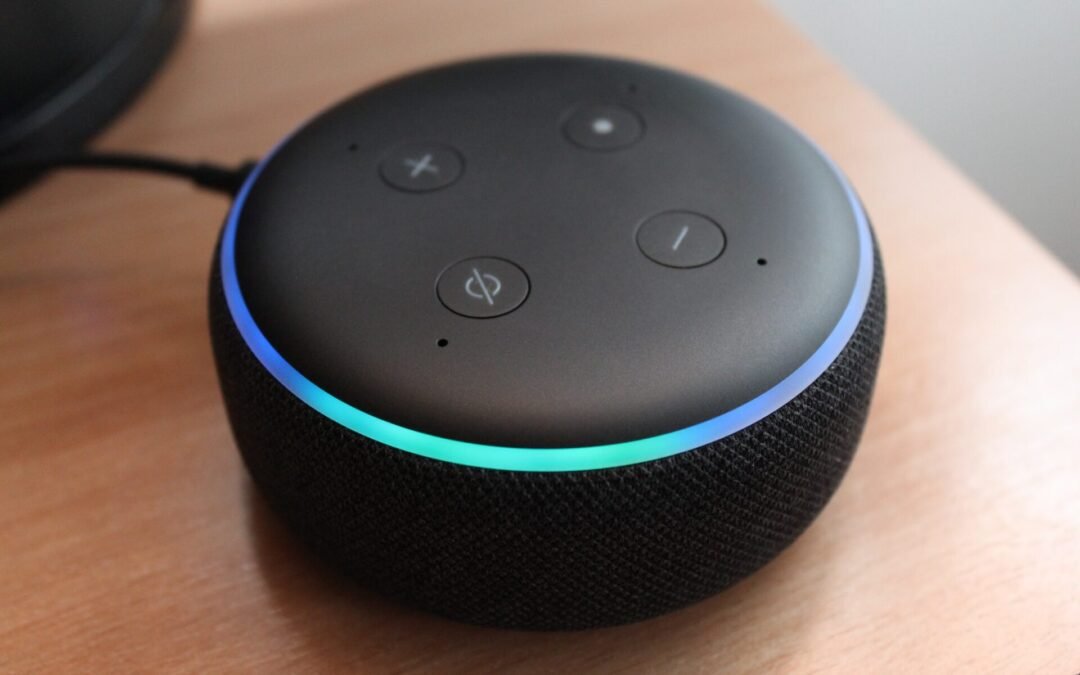
Do you want to be able to talk to your kids from another floor of the house without having to scream? I’m raising my hand real high right now! Do you want to be able to easily communicate with them when they're home alone, or when you're out and about and need to run an errand? What about notifying everyone that dinner is done? If so, a smart home intercom system might be the perfect solution for you! You can set one up for less than $100 and it'll make communicating with your family a breeze. We’re going to dish on some valuable information on what a smart home intercom system is and how it works. You might be surprised at just how helpful they can be!
Intercom Systems 101
For starters, let’s briefly break down how intercom systems work. An intercom is a two-way communication system that allows people to talk to each other from different locations. They can be used in homes, businesses, schools, and other places where people need to communicate with each other. Intercom systems can be wired or wireless, and they come in a variety of different designs and sizes.
Intercom systems are most commonly used in schools and businesses to allow teachers or employees to talk to students or customers from different locations. They’re not used as much as they once were because we have devices, email, and apps where a lot of communication takes place. But intercom systems can still be used in homes to allow parents to talk to their children when they're upstairs or downstairs, or to allow grandparents to keep an eye on their grandchildren when they're home alone. Intercom systems are also popular for use in security applications because they can help monitor staff. You might think they are outdated or obsolete because of technological advances, but they’re really not.
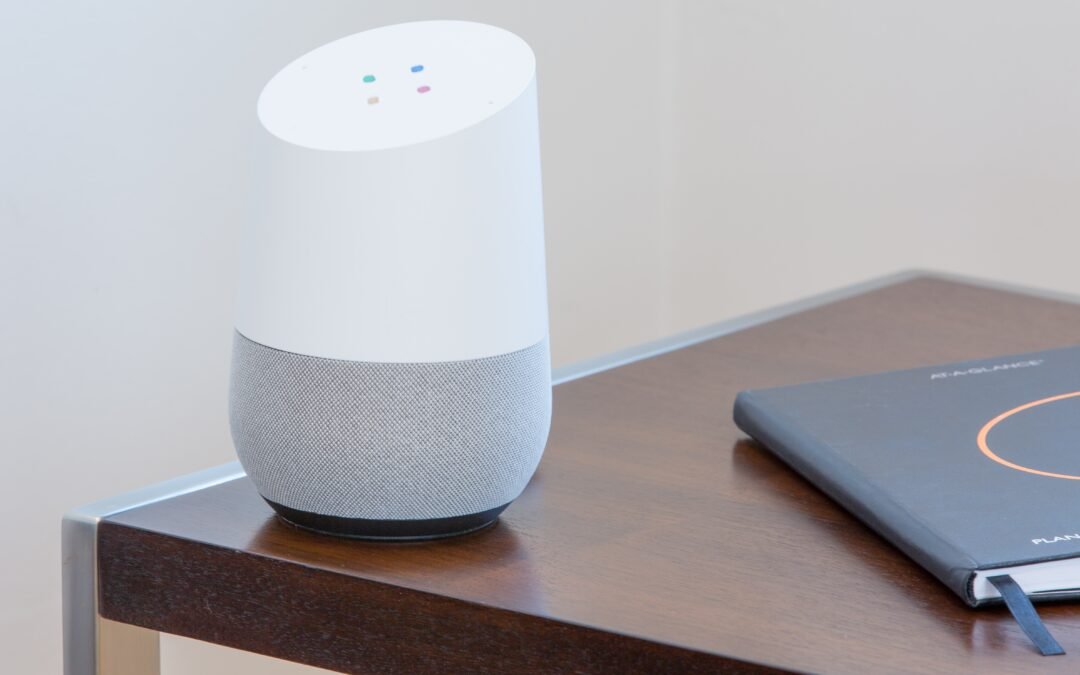
So what’s the big difference between a regular intercom system and a smart home intercom system? The biggest differentiator is that you are leveraging smart devices (in this case Google Minis, Google Nest Audio, or even Amazon Echo Dots) to create a customized smart home intercom experience. Quite frankly, I’m not sure the regular intercom systems are applicable to home anymore. Maybe businesses and schools, but with the rise in smart home automation systems…they’re all but obsolete.
How To Install Your Smart Home Intercom System
Here’s what you’re going to need. And as we said above, you can do this for less than $100! You’re going to need to get your hands on a handful of Google Minis. As far as I can, this setup will work with all generations of Google Mini. The best place we’ve found to buy Google Mini’s is eBay. I’ve bought used or refurbished Google Mini’s in the past from eBay and have never had any issue. You can also buy the latest generation directly from Google or a store like Walmart here in the USA.. You won’t find them on Amazon though (huh, I wonder why? Kind of like I can’t buy an iPhone at a Microsoft store 😉 ). Not to play conspiracy theorist, but from a business perspective, I can see why Amazon wouldn’t have these devices pop up in Amazon searches. In fact, if you do try to search for these, you’ll get bombarded with Amazon devices.
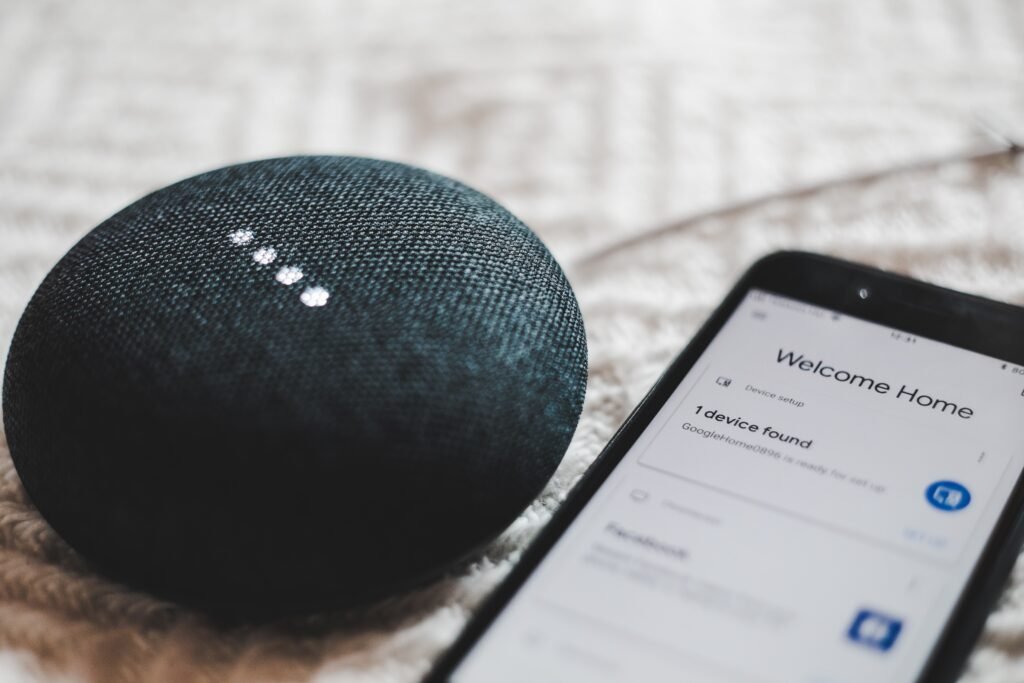
How many Google Mini’s do you need? Depending on home size, I’d start with four. You can still get four of these for under $100. You’re also going to need to download the Google Home app once you get them. You will need it for setup. Where should you place each unit? I’d start with one in the kitchen, one in the living area (commons area, preferably the basement), one in the master bedroom, and one in a central location where kids or most people congregate. Think high hangout or high foot traffic areas. Each smart device will need an outlet so that’s something to consider. For a handful of our Google Mini’s, we bought these wall mount holders which are super convenient and useful. Personally, I have one in the hallway upstairs, the master bedroom, each kid has one in their rooms, the kitchen, the basement hangout, and the garage.
Once you’ve mapped out where you want each smart home speaker going, plug each one in (one at a time is easiest), follow the setup instructions in the Google Home app, and then you’re set. It’s that easy. To broadcast to the whole system is equally as easy. If your smart home speaker is in listening range, simple command, “Hey (or Okay) Google broadcast”. It’ll then ask you what you want to say and you say it. Easy. You can also open your Google Home app or enable “Hey Google” on your smartphone to do the same thing. In fact, you can do this when you’re not home. I use my phone all the time to broadcast at home something for my family “Gabe I’m 5 mins out, I’ll take you to practice, grab me a Diet Coke”...and like magic a 15 year old boy is waiting at the end of the driveway with a Diet Coke in hand when I pull up. It’s almost magic!
Amazon Echo Dot Smart Home Intercom Setup
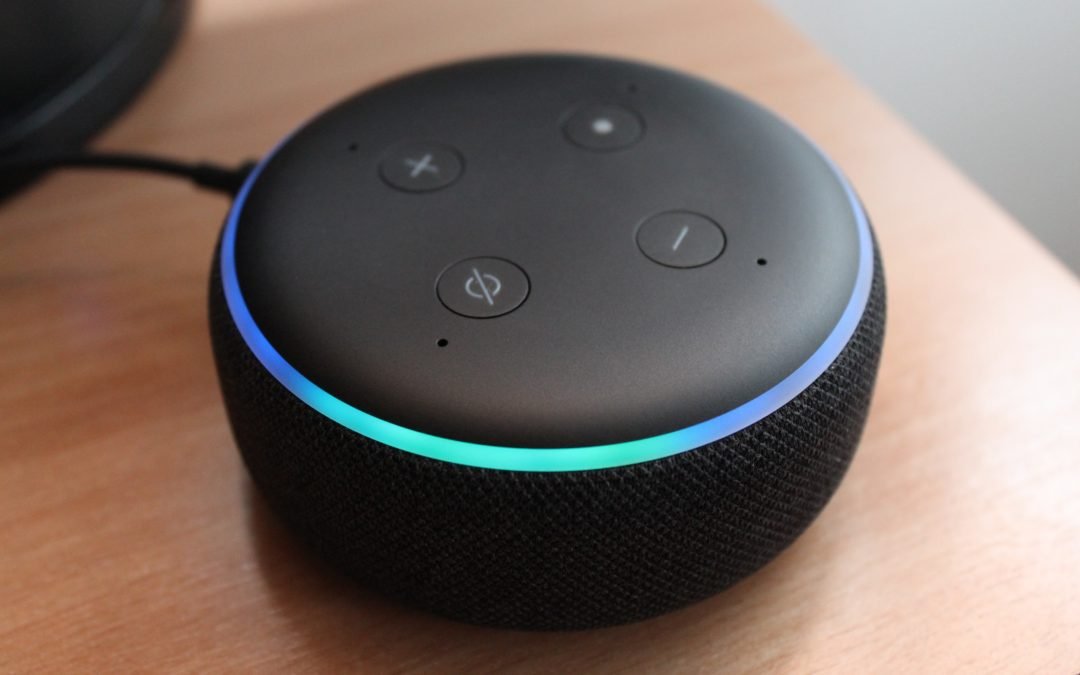
The same principles you used with Google smart speakers apply to setting up a smart home intercom with Alexa devices. I love using the Echo Dot for this. Get the desired amount of devices, download the app, place them where you want in the home, and finish the setup. They’re still around $50 so getting four devices is going to be around $200. That’s still relatively cheap compared to basic intercom models. We use ours enough in the home where I’d still probably pay around $300 to $400 to have a smart intercom system in our home.
First off, I didn’t even know I wanted to set up an intercom system in my home until I started experimenting with home automation products. They are so handy! If you want a basic smart home automation system (one with speakers, smart outlets, smart lights, smart doorbell, etc), spend an extra $200-$300 and you’ll be surprised just how practical they are and how much more efficient you can be in your daily tasks with one. We highly recommend smart home automation.
What makes this setup we outlined above “smart” is you can still get other features from these smart devices that 99% of intercom systems can’t deliver. We did some basic comp analysis and some of the base models for intercom systems can run you as high as $2,000! Yikes! For that kind of cheddar, you can get an amazing smart home automation system with smart thermostats, video conferencing, ring cameras, internal and external security cameras, and more! With a basic smart home intercom setup, each device is still smart and can do some fun and practical things. Google Assistant has an array of commands and benefits. Amazon’s Alexa devices are equally, if not more, impressive as well. Essentially, you get an intercom system and then a lot more when you set it up this way.
Another incredible benefit of having a smart home intercom system organized this way (and we alluded to it earlier) is that you get the basic foundational layer of a smart home automation system in your home. Down the road, if you want to experiment with smart outlets…it’s set up for that. Maybe you want to get the Ring camera. It’s an easy add-on. You can gradually build out a smart home and go with what you feel comfortable with.
What I Love About This Smart Home Intercom Setup
There are seriously dozens of reasons why I like setting up a smart home intercom system this way. Here are a handful of reasons:
I can target individual smart speakers so I don’t have to broadcast a message to the entire smart intercom setup. For example, I can say “Broadcast to Susie’s speaker” and send a message that only gets delivered to her device.
Love to be able to communicate at a moment’s notice. I can immediately broadcast a message without touching a single device or opening a phone.
I can broadcast while away from the home. This is a great feature when no one is answering their phones or my text messages.
Communication is easy and seamless. You can communicate through the Google Home app on your devices or communicate directly to your smart home device. The ease of use is flawless with this setup. I also love to be driving home or leaving a location and send a broadcast to the family that I’m on my home (I think the dogs like it too).
It’s simple to use, but if I wanted to get into some complex functions, I can do that as well. This setup is versatile which is why I love it.
I can easily add video conferencing in the rooms I want with a Google Nest Hub.
I could list more and more reasons why I love setting up a smart home intercom system this way, but chief among them is this setup is how I introduced smart home automation to family members (especially the technically disadvantaged family members). I noticed that once they were comfortable with this setup, they naturally wanted to know if they could install a Ring camera. Then came another external security camera, then smart lights, then the next thing. This is a great introductory process for getting into the smart home game without being inundated with a ton of technology all at once.
If you’re looking for a great way to add some extra convenience and security to your home, a smart home intercom system is the perfect solution. And, you can get one for less than $100! They’re easy to install, come packed with more features than normal intercom systems, and come with some of the benefits you get with basic home automation.
Before we dive into whether or not Google Nest Wifi can really deliver faster internet speeds, let’s briefly discuss what it is. Google Nest Wifi is a wifi system that uses mesh networking to provide better coverage in your home. Pretty simple definition. It comes with a Google Nest Hub, which is a smart display with a built-in Google Assistant. This acts as a smart speaker, a smart speaker is a great way to have easy access to the internet and all of its benefits. With just a voice command, you can have music playing, the news read to you, or even control your other smart devices in your home. Plus, many speakers now come with built-in WiFi, so you don't even need to be near your router to get connected. You can use the Google Nest Hub to see who's at the door, control your smart devices, and more. When it comes to home automation, a Google Nest Wifi is a tremendous piece of hardware and software that is relatively inexpensive compared to what it offers in benefits and value.
Some of the features we love about Google’s Nest Wifi (2nd Generation 3 Pack):
Coverage of up to 6K+ square footage
Reliable internet connection (if one access point goes out devices auto-connect to another)
Ability to create Guest Networks for Wifi (no more sharing passwords to your home network)
Parental controls (love Google’s network controls on the app, manage and schedule time for your children, set up content restrictions, pause WiFi with ease)
SafeSearch option by device (enable for kids’ devices, don’t have to for adults)
Can handle up to 200 devices connected to your network with minimal effect on speeds
Ability to prioritize devices on your network (which ones get faster speeds and which ones get throttled back)
Optimal Security (each one comes with an advanced security chip to help keep your home network and data safe)
Don’t let these fancy technobabble terms scare you away. Mesh networking is a type of wifi network in which each node (device) not only acts as a router for your devices within its range but can also relay traffic for other nodes on the network. It’s super cool technology. This makes mesh networks very reliable and resilient since if one node goes down, the traffic can still be routed through other nodes on the network.
Mesh networking is becoming more and more popular lately, especially with the rise of smart home devices and further advances in home automation. They are almost a must-have if you want the most efficiently run home automation system. With mesh networking, you can have a whole-home wifi network that is much more reliable than traditional routers. Plus, it's becoming easier and easier to set up mesh networks thanks to new mesh-enabled routers and apps like Eero or Google Wi-Fi.
If mesh networking is something you want to invest in and you’re just not sold on Google’s Nest Wifi, we highly recommend checking out the Netgear Orbi Pro, the Eero Pro 6, or the Gryphon Ax as these mesh router systems are top of the line in this market BUT are really easy to set up. Another choice on a lower price point would be the TP-Link Deco Mesh WiFi System. With each of those mesh WiFi systems, you’ll get large square footage coverage, blazing-fast gigabit speeds, and amazing options to protect your smart home.
So what you really want to know is: Can Google Next Wifi actually make your internet faster? One of the bigger problems with internet speeds is where your router or modem is located in the home. In many cases, your internet service provider places these in the most conspicuous places where the signal will be rife with interference. Walls, concrete, brick, insulation, wiring…many things in your home can interfere with your internet signal. A mesh WiFi like the Google Nest Wifi broadcasts the internet signal in your home and evenly distributes that signal for optimal coverage. You can score one of these devices HERE for one access point or HERE for more. Our house is a decent-sized home, so we opted in for three access points. I’m glad we did because I get optimal internet signal just about everywhere. They are super easy to set up. You download the Google Home app and it literally guides you through the whole process. Even when you might experience a setback in the setup process the Google Home app does an awesome job reconciling and troubleshooting the issue.
So I had a better internet signal, but what about speeds? Once we got the Google Nest WiFi up and running we immediately noticed a better connection and faster speeds. I tested the connection and speeds in just about every location in my home and was able to access fast internet just about everywhere (definitely in areas where I hadn’t even been able to secure a connection previously). Aside from delivering better, faster internet speeds throughout your entire home like we mentioned earlier, the Google Nests are smart speakers, the system allows you to set up a guest network (which can also help keep your internet speeds fast), and has some of the best parental controls for a home network. If I’m in need of hogging all the internet for an important Zoom call with a client, I can quickly disable the internet for all devices so my laptop is the only device pulling from our internet. It’s an awesome feature. Back to the question of “Can Google Nest Wifi make my internet faster?” In most situations, absolutely this cool mesh Wifi system can make your internet faster.
Did you know Amazon is using your internet to create its own network? Here’s why you want to opt-out of Amazon Sidewalk right now. When I first heard about this, I was a little shocked, but after thinking about it I can understand why Amazon is doing it. Regardless, it’s probably a very reasonable idea to opt out of Amazon Sidewalk. We wanted to walk you through how they’re doing it and how you can easily opt-out of the Amazon Sidewalk program.
Amazon Sidewalk 101
Amazon uses its smart devices to create its own mesh network (encrypted three levels deep), so it can keep your devices (and those around you that aren’t yours) always connected to the internet. Essentially, even if your internet service goes out, these Amazon devices can still stay connected to the internet through this mesh network provided via Amazon Sidewalk. It’s a brilliant concept when you think about it. Is it that secure? As we mentioned above, Sidewalk features three layers of encryption, so the chances of hackers accessing that raw data in their mesh network is close to nil. Let’s be real though, hackers are smart and hackers are some of the most talented and creative people I’ve ever met, so to them this “uber high-tech, ultra-encrypted network” scream of opportunity, so I’m hesitant to just hand over my internet sharing to Amazon.
Along those same lines of data, security, and technology…it’s scary to think that Amazon has a technology hidden inside of millions of homes out there with a sizable amount of those homes having no clue what Amazon (how Amazon) is using their internet for. Having the ability to use your personal internet connection with your neighbor’s devices (for the most part without your consent) feels like shady business on the side of Amazon. I have seen a popped-up message in the Alexa app one time when setting up a new Amazon device, but I would hardly constitute that as clear messaging on what Sidewalk is doing. In a test, I asked a few friends if they knew Amazon was using their internet to share it with their neighbor’s Amazon devices. They were really shocked (and some mad) that Amazon was doing this.
Let’s walk you through what all this is. First, last year Amazon turned on Amazon Sidewalk for everyone that has an Amazon device (mostly Echo smart speakers, Echo dots, Ring security cameras, etc). It was built into their devices a handful of years back, so they’ve been planning on launching this for a while (we guess four years at least). Amazon is able to leverage Bluetooth technology along with its Amazon smart devices to create bridges to keep everything connected. By definition, it is their own mesh network. You just have to supply the internet (and your neighbors are supplying it as well).
Like we said, it’s impressive technology with a potential range of up to a half-mile. I could see why you'd want to use Amazon Sidewalk. For optimal home security, you really need those home security devices to always stay connected to send you notifications and alerts (and to keep a record). This does raise a little controversy in the fact that it can share your internet bandwidth with the neighborhood though. And because of that, we wanted to show you how to opt out of Amazon Sidewalk.
How Do I Turn Off Amazon Sidewalk
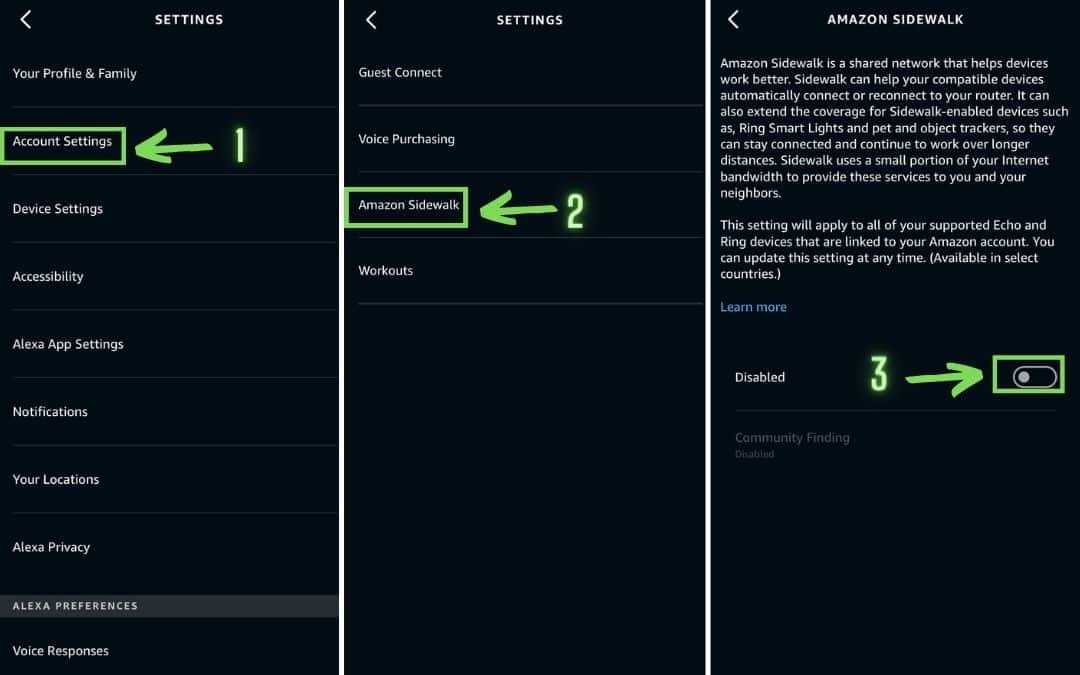
You can turn off Amazon Sidewalk in 5 clicks or less! It’s so easy and you don’t have to spend a ton of time finding where it is. This can literally take you maybe a minute. If you don’t see these options we’ve outlined below then you most likely don’t have an Amazon Sidewalk device. You’ll need at least a third-gen or newer Echo or Echo Dot and newer versions of Echo Show and Ring cams. We’re going to want to open the Alexa App on your smartphone to turn this off. From here, tap on the More menu in the bottom right.
Step 1: Tap on the Setting and Account Settings
Step 2: Tap on Amazon Sidewalk
Step 3: Make sure Enabled is selected to “Disabled”.
What’s nice about turning off Amazon Sidewalk is if you turn off Sidewalk in your Alexa app, it will cover turning it off on all devices for that account. Another thing to be aware of when you turn Amazon Sidewalk off–since you won’t be sharing your network with your neighbors, you won’t be able to access the Sidewalk network for your devices if your network drops. Again, turning it off is entirely your decision. If you want your devices to stay connected all the time to the internet in case yours goes down, it might not be a bad idea to leave enabled. As for me, my internet service has gone down twice in the last year and it was only for a brief moment and in the middle of the night. Because of that, we’ve disabled Amazon Sidewalk for now until we find a solid reason why we need it enabled.
Do you really need to know what is happening with your home network? Are you really at risk for not monitoring it? You’d be surprised by what dangers are lurking out there. It always amazes me when I come across a family relative, friend, or acquaintance that is completely aloof to how the internet operates in their home. Numerous times, I’ve encountered a home where the WiFi connection isn’t secure with a password and it baffles me, even causes me a little anxiety. I’d argue that it’s the responsibility of the internet provider to at least create a password to make someone’s network secure, but I digress. We created a list of questions every parent (actually every homeowner) should know as it relates to their home network. Don’t worry, we’re not going to throw out some technobabble jargon to confuse you. We don’t care about sounding smart. We care about helping you. We’ll keep this as dumb simple as possible, so you can have some actionable things to do after reading this.
What Is A Home Network?
Before we get into the questions you need to have a handle on, let’s just start with the basics here because if you aren’t monitoring your home network, you might not even know what it is. This is really easy. A home network is a group of devices that connect to the internet in your home. Those groups of devices could be laptops, computers, iPods, tablets, Amazon Echos, gaming systems, printers, smartphones, smartwatches…anything that connects to your internet. So when we say “Home network”, this is what we’re referring to. It’s everything. Simple, right?
Three Important Questions Every Parent (Home Owner) Should Be Asking
There are more than three important questions you should have a grasp on when it comes to monitoring your home network, but we wanted to focus on the three most important and easy-to-solve questions. I’d even add to this that you should know the answers to these questions or at least know how to access those answers fairly quickly. We’re going to carefully go through each of these questions and dive into why you should know each one and why each one is important.
Do You Know What Devices Are Connected To Your Home Network?
If your first gut reaction is, “I have no clue and I have no clue how to find out.” Then keep reading! Don’t want to freak you out, but how sure are you that your neighbor isn’t streaming off your internet connection? Knowing what devices are connected is definitely one of the most important things to know and understand. Your home internet is important because it provides the connection for all of your devices in your home to the outside world of the web. If you have devices that are not connected to your home network, such as a laptop that you take with you on trips, then those devices are vulnerable to anyone who might be using the same public networks as you. And when those devices connect to your home network, there are security risks. That’s just one example among many.
By knowing what devices are connected to your home network, you can better protect yourself by setting up firewalls and other security measures on your home network. You can also set parental controls on specific devices that are connected to your network, which can help protect your children from inappropriate content online.
Do You Know Which Websites & Apps Are Being Accessed By Your Home Network?
You might think this question is the same as the first, but they are very different. Knowing what those devices connected to your network are accessing is another very important thing for you to know. For starters, you should want to know the type of content and media the devices connected to your home network are accessing. No judgments here, but it’s downright scary what people look at and consume on the internet. In some cases, you might be held liable for what someone on your home network is accessing. So you should care. The Communications Decency Act gives you a little protection, but you don’t want to deal with investigations and discovery and all that legal stuff. Better safe than sorry. We don’t mean to strike fear into you either, it is a reality.
But that’s just one part of the equation. Apps and websites can access your personal information. I literally had a friend track my smartphone through a link he shared with me. It was creepy. But it taught me a really important lesson. Websites can make a record of your computer’s ID and your IP (Internet Protocol) address and track your web-behavior. With a decent firewall or VPN (DDID choice is ExpressVPN), you can completely halt this. And knowing which apps and websites are being accessed by your home network is vital. Because if you're not careful, someone could be accessing your personal information without your knowledge. But I like to know what apps my family is using. Tik Tok, Instagram, Facebook, Snapchat, Fortnite…I like to know when those are being accessed, how often, and how much.
Do You Know What Devices Connected Your Home Network Are Accessing?
It’s the 2020s, man. Kids share passwords. They shouldn’t, but they do. One of my favorite things to do is get a notification when a new device accesses my network only to shut it down moments later. Usually, it’s my son’s friend accessing our home network, but I still like to chat with them before I give them access so I can let them know that I can see EVERYTHING they’re doing on their phone. Want to avoid any awkward future conversation with their parents (if you know what I mean).
Why else is it crucial to know which devices are connected? Because your devices talk to each other. But it's also important to know what devices are connected to your home network because each device uses up bandwidth and slows down the network for everyone else. A lot of smartphones won’t update apps or operating systems unless connected to WiFi. Many times once a guest in my house gets access to my network, their phones start downloading those apps and using a ton of my data. With a decent router, you can throttle specific devices and even shut them down if you wanted to. Additionally, some devices might be hacked and used to steal your personal information or launch cyberattacks against other people. By knowing what devices are connected to your home network, you can take steps to secure them and protect your privacy. You can also disable or unplug any devices that you don't use anymore.
What Do I Recommend To Monitor A Home Network?
So…what are you supposed to do? Hopefully, by now, you understand the importance of knowing why monitoring your home network is important. Time to take action! There are so many options out there to help monitor your home network. There are some complex options and some really simple, yet effective solutions. I really like Google’s Nest Wifi. Not only can it act as a home automation hub where you can control all the smart devices in your home (outlets, lights, cameras, locks, thermostat, plant lights, etc), but it can also help you monitor your home network. If you want, you can set up a guest network on your home network as well. Setup is really easy and the Google community and support are just phenomenal. Plus, operating the app and navigating through features is a huge thing for me. Google’s Wifi section of Google Home (where these features exist) are just fantastic. If you’re a little more geeky, you can also look at the Synology RT2600ac which has similar features, plus some really cool parental controls and notifies you as bad-guys attack you from the outside. I’ll have to do a review of that bad-boy.
We all have our favorite. But just in case you don’t, here are 11 of our favorite and best Amazon Alexa commands. These are the Alexa commands we always use. These are what we consider the best Alexa commands. Period. We also threw in some extras we wish we had along the way.
Alexa Commands You Should Know (And Use)
Aside from telling you the Alexa commands we think will be valuable in your home (or possibly a work setting), we also wanted to dish on how we really leverage the below commands to augment these digital assistants.
Alexa, Set a Timer…
Telling Alexa to set a timer is a versatile command. Use a timer for cooking. Use a timer to give your kids a deadline to perform a task. Use a timer to keep you on task. Use a timer to set a time limit for when someone has to be finished watching TV or playing a game. Use a timer to play a game. Use a timer to help with gaming management. This is one of those commands you will most likely use on a daily basis. Now, timers are everywhere (phones, microwaves, ovens, etc), but the convenience of using an Alexa-enabled device to perform the command is really simple.
Alexa, Broadcast
Easily turn your Alexa devices into an intercom system with this command. When we first were introduced to the Amazon Echos and had two of them, we used this command so much that we ended up buying a device for every room in the home. Another cool little trick with this is to connect other audio equipment such as a TV or a soundbar and you’ll also get another vehicle to use as a broadcast tool.
Alexa, Read My Notifications
This one comes in really handy when you want to snoop on what your spouse is getting you for your birthday or Christmas 😉 But…at the same time, your kids can also snoop on what you’re getting them as well (we’ve learned that the hard way). But having Alexa read you your notifications is so convenient. I love knowing when a package is out for delivery or when a package has been delivered. In the days where porch pirating is a thing, these little notifications are beneficial.
Alexa, Add _____ To My To-Do List
At first, there was a hesitation to use Alexa to help me put things on a To-Do list. It’s hard to break the pen and paper habit. And then I tried using my phone for a To-Do list (which is really nice as well). BUT…using this Alexa command for adding simple things (and even bigger things) is so handy and is a time-saver.
Alexa, Remind Me…
We have fun with this one as well. We’ll say, “Alexa, remind me tomorrow to never let my kids watch Netflix again.” They chuckle and giggle when I say it and laugh harder the next day when Alexa reminds me 😉 We also use this aside from having fun. It’s a great command to remind you to do tasks around the house or to remind you about an appointment, which leads us to…
Alexa, Add _____ To My Calendar
Okay, so it can be redundant to use “Alexa, remind me about my appointment” and “Alexa, Add my appointment to my calendar.” And there is a little bit of overlap from time to time with these two commands. But they are different. Most calendars have notifications enabled to remind you about them. But just like its remind-me-cousin, we love this command.
Alexa, Turn On My Lights OR Alexa, Dim The Lights To 30 percent In My Bedroom
This might be one of the top three Alexa commands used not just in our home, but in all homes. Depending on the smart home devices you have set up, you can even take this command a little further and ask Alexa to dim lights in a specific room. You are going to need a smart plug or smart bulbs to use this function as well. There are times in my mind when I do think, “I’m so lazy because I can turn the lights on and off with my voice and I don’t have to get out of bed”. But it’s more than doing something because we don’t want to do it. Leveraging this technology allows us to utilize our time more effectively. I don’t think I’ve ever sat down and really calculated how much time smart devices have saved me, but I know it’s a lot.
Alexa, Set The Temperature To 70 Degrees
We’ll preface this by saying you are going to need a smart thermostat to perform this function. We have our smart thermostat completely automated to change based on our preferences. We have a geofence set up so it knows when to optimize when we’re in the home too. But…there are those times when someone wants the temp to be a little cooler or a little warmer and we ask Alexa to help out. This is nice.
This is a go-to command. Not only is it a convenient one when you’re laying down (or can’t find the remote), it’s one of my favorites to use when the kids don’t do something I’ve asked them to do. After the third time asking, I just say, “Alexa, turn my TV off.” It’s always greeted with groans or some thwarted attempt to screw up the command before Alexa can interpret it. This is a great one for parents.
Alexa, Find My Phone
You’ll have to initially enable this skill (Find My Phone) by linking your number and confirming with a four-digit code. But once you get past the initial setup (which is extremely easy), this command works flawlessly. Very useful. You can also add contacts and call contacts with this Amazon Alexa skill.
Alexa, Roll a Die OR Alexa, Flip a Coin, OR Alexa, pick a number between 1 and 100
We use this command at least a few times a week. Usually, it’s to settle a dispute or a disagreement between two parties. We love this because it’s easy to use and is quick.
Alexa Commands We Wish Existed (Maybe They Do!)
In a perfect world, these are the commands we would use all the time! They don’t exist yet, but perhaps one day we’ll get to a point where the technology catches up to these Alexa command fantasies. We have hope these commands will one day come to fruition!
Alexa, Find My Remote
If you have a Bluetooth tracker, you theoretically could use this command. But…we just wish it was this easy without the extra Bluetooth tracking tech 😉 But realistically, if you have an Alexa-enabled smart TV, you can control your TV with your voice (or a command), which would render a remote somewhat useless. It’s interesting to think of controlling the TV this way. Perhaps, our remote controls will soon be a thing of the past…
Alexa, Shields…Red Alert!
This would raise your shields and load photon torpedoes and notify Starfleet that the Meredith home was engaged in a battle. OK not really, but using home automation could use to lock your doors, turn on your security system, and turn off your lights. I actually use the command “Secure the Batcave” to accomplish this, and the command a special command (I’m not going to share with you for obvious reasons) that I can say to turn on all the lights in the house and start recording on all cameras (inside and outside), for those times that I think I heard something in the middle of the night.
Alexa, Make Me Dinner
This is a no-brainer, right? Maybe this command could (will?) happen in the future. There already is a movement with 3D printed food, so it’s not far-fetched to think we’re really close to the point where we potentially are giving commands to our smart devices to make food.
Alexa, Do The Dishes
We’ll preface this by saying there are smart dishwashers on the market. And they do some pretty cool things by connecting to your smart home. But…they still haven't figured out how to load up the dishes in the dishwasher yet 😉 But…I have found a patch with this wishful command, “Alexa, remind my son to do the dishes today at 5 PM.” It works about half the time, so the command is a little clunky. Needs more use, I guess.
Underground Alexa Command Hacks
Who knows what Alexa is capable of. These smart devices are like those old-school video games that have hidden cheat codes. You can even train Alexa to perform certain tasks. I bet there are hundreds and hundreds of “cheat code-like” prompts and actions Alexa can do that the public isn’t aware of. Here are a few of our “underground Alexa hacks”. We just call them “hacks” because we don’t see people use these as often and they are very useful.
Use And Master IFTTT
One of my favorite Alexa hacks is setting up an IFTTT recipe. Now, if you don’t know what that is, IFTTT stands for If This, Then That and you can assign certain actions based on event triggers. For example, I can set up a trigger to turn my lights on in a specific room in the house. You could also trigger the TV to go off when a timer ends (great for telling the kids they only have 10 minutes left to watch). Some of these recipes that are more customized can be a little difficult to set up, so we recommend starting out simple and building your skills over time. Once they’re set up, it’s simple, “Alexa trigger [IFTTT Recipe Name]” and you’re good to go.
Teach Alexa Your Voice
This is one that all too many times goes overlooked. We get it. You just unbox this really cool device and you’re in a hurry to use it and set it up. That prompt comes up to train Alexa to recognize your voice and you’re like “Skip that.” But…one of the most frustrating aspects of these cool little gadgets is when it can’t figure out what you’re saying. So, learn from our mistakes and train Alexa to your voice. On the app on your smartphone, hit Menu, then Settings, then Your Voice, and begin the routine.
Alexa, Repeat That
If I had a dime for every time I had to ask a question again to Alexa. Sometimes you just don’t understand the response and sometimes a competing noise interferes with Alexa’s response. Simply say, “Alexa, repeat that” and you’ll hear the same response again.
There Are So Many Possibilities
All you have to do is Google “Alexa commands” and you’ll see there are literally hundreds upon hundreds of commands you can utilize. The best thing about all of these Alexa commands is there are so many that there are definitely a dozen you could use to make life easier (and entertaining) for your home. Amazon also has what is called Alexa Skills. Alexa Skills is more than just downloading an app onto your smart device. Instead, you're able to use voice commands and natural language processing capabilities that let you do things like order pizza or play music from Spotify (or Amazon Music).
We all have our favorite. But just in case you don’t, here are 11 of our favorite and best Amazon Alexa commands. These are the Alexa commands we always use. These are what we consider the best Alexa commands. Period. We also threw in some extras we wish we had along the way.
Alexa Commands You Should Know (And Use)
Aside from telling you the Alexa commands we think will be valuable in your home (or possibly a work setting), we also wanted to dish on how we really leverage the below commands to augment these digital assistants.
Alexa, Set a Timer…
Telling Alexa to set a timer is a versatile command. Use a timer for cooking. Use a timer to give your kids a deadline to perform a task. Use a timer to keep you on task. Use a timer to set a time limit for when someone has to be finished watching TV or playing a game. Use a timer to play a game. Use a timer to help with gaming management. This is one of those commands you will most likely use on a daily basis. Now, timers are everywhere (phones, microwaves, ovens, etc), but the convenience of using an Alexa-enabled device to perform the command is really simple.
Alexa, Broadcast
Easily turn your Alexa devices into an intercom system with this command. When we first were introduced to the Amazon Echos and had two of them, we used this command so much that we ended up buying a device for every room in the home. Another cool little trick with this is to connect other audio equipment such as a TV or a soundbar and you’ll also get another vehicle to use as a broadcast tool.
Alexa, Read My Notifications
This one comes in really handy when you want to snoop on what your spouse is getting you for your birthday or Christmas 😉 But…at the same time, your kids can also snoop on what you’re getting them as well (we’ve learned that the hard way). But having Alexa read you your notifications is so convenient. I love knowing when a package is out for delivery or when a package has been delivered. In the days where porch pirating is a thing, these little notifications are beneficial.
Alexa, Add _____ To My To-Do List
At first, there was a hesitation to use Alexa to help me put things on a To-Do list. It’s hard to break the pen and paper habit. And then I tried using my phone for a To-Do list (which is really nice as well). BUT…using this Alexa command for adding simple things (and even bigger things) is so handy and is a time-saver.
We have fun with this one as well. We’ll say, “Alexa, remind me tomorrow to never let my kids watch Netflix again.” They chuckle and giggle when I say it and laugh harder the next day when Alexa reminds me 😉 We also use this aside from having fun. It’s a great command to remind you to do tasks around the house or to remind you about an appointment, which leads us to…
Alexa, Add _____ To My Calendar
Okay, so it can be redundant to use “Alexa, remind me about my appointment” and “Alexa, Add my appointment to my calendar.” And there is a little bit of overlap from time to time with these two commands. But they are different. Most calendars have notifications enabled to remind you about them. But just like its remind-me-cousin, we love this command.
Alexa, Turn On My Lights OR Alexa, Dim The Lights To 30 percent In My Bedroom
This might be one of the top three Alexa commands used not just in our home, but in all homes. Depending on the smart home devices you have set up, you can even take this command a little further and ask Alexa to dim lights in a specific room. You are going to need a smart plug or smart bulbs to use this function as well. There are times in my mind when I do think, “I’m so lazy because I can turn the lights on and off with my voice and I don’t have to get out of bed”. But it’s more than doing something because we don’t want to do it. Leveraging this technology allows us to utilize our time more effectively. I don’t think I’ve ever sat down and really calculated how much time smart devices have saved me, but I know it’s a lot.
Alexa, Set The Temperature To 70 Degrees
We’ll preface this by saying you are going to need a smart thermostat to perform this function. We have our smart thermostat completely automated to change based on our preferences. We have a geofence set up so it knows when to optimize when we’re in the home too. But…there are those times when someone wants the temp to be a little cooler or a little warmer and we ask Alexa to help out. This is nice.
This is a go-to command. Not only is it a convenient one when you’re laying down (or can’t find the remote), it’s one of my favorites to use when the kids don’t do something I’ve asked them to do. After the third time asking, I just say, “Alexa, turn my TV off.” It’s always greeted with groans or some thwarted attempt to screw up the command before Alexa can interpret it. This is a great one for parents.
Alexa, Find My Phone
You’ll have to initially enable this skill (Find My Phone) by linking your number and confirming with a four-digit code. But once you get past the initial setup (which is extremely easy), this command works flawlessly. Very useful. You can also add contacts and call contacts with this Amazon Alexa skill.
Alexa, Roll a Die OR Alexa, Flip a Coin, OR Alexa, pick a number between 1 and 100
We use this command at least a few times a week. Usually, it’s to settle a dispute or a disagreement between two parties. We love this because it’s easy to use and is quick.
Alexa Commands We Wish Existed (Maybe They Do!)
In a perfect world, these are the commands we would use all the time! They don’t exist yet, but perhaps one day we’ll get to a point where the technology catches up to these Alexa command fantasies. We have hope these commands will one day come to fruition!
Alexa, Find My Remote
If you have a Bluetooth tracker, you theoretically could use this command. But…we just wish it was this easy without the extra Bluetooth tracking tech 😉 But realistically, if you have an Alexa-enabled smart TV, you can control your TV with your voice (or a command), which would render a remote somewhat useless. It’s interesting to think of controlling the TV this way. Perhaps, our remote controls will soon be a thing of the past…
Alexa, Shields…Red Alert!
This would raise your shields and load photon torpedoes and notify Starfleet that the Meredith home was engaged in a battle. OK not really, but using home automation could use to lock your doors, turn on your security system, and turn off your lights. I actually use the command “Secure the Batcave” to accomplish this, and the command a special command (I’m not going to share with you for obvious reasons) that I can say to turn on all the lights in the house and start recording on all cameras (inside and outside), for those times that I think I heard something in the middle of the night.
Alexa, Make Me Dinner
This is a no-brainer, right? Maybe this command could (will?) happen in the future. There already is a movement with 3D printed food, so it’s not far-fetched to think we’re really close to the point where we potentially are giving commands to our smart devices to make food.
Alexa, Do The Dishes
We’ll preface this by saying there are smart dishwashers on the market. And they do some pretty cool things by connecting to your smart home. But…they still haven't figured out how to load up the dishes in the dishwasher yet 😉 But…I have found a patch with this wishful command, “Alexa, remind my son to do the dishes today at 5 PM.” It works about half the time, so the command is a little clunky. Needs more use, I guess.
Underground Alexa Command Hacks
Who knows what Alexa is capable of. These smart devices are like those old-school video games that have hidden cheat codes. You can even train Alexa to perform certain tasks. I bet there are hundreds and hundreds of “cheat code-like” prompts and actions Alexa can do that the public isn’t aware of. Here are a few of our “underground Alexa hacks”. We just call them “hacks” because we don’t see people use these as often and they are very useful.
Use And Master IFTTT
One of my favorite Alexa hacks is setting up an IFTTT recipe. Now, if you don’t know what that is, IFTTT stands for If This, Then That and you can assign certain actions based on event triggers. For example, I can set up a trigger to turn my lights on in a specific room in the house. You could also trigger the TV to go off when a timer ends (great for telling the kids they only have 10 minutes left to watch). Some of these recipes that are more customized can be a little difficult to set up, so we recommend starting out simple and building your skills over time. Once they’re set up, it’s simple, “Alexa trigger [IFTTT Recipe Name]” and you’re good to go.
Teach Alexa Your Voice
This is one that all too many times goes overlooked. We get it. You just unbox this really cool device and you’re in a hurry to use it and set it up. That prompt comes up to train Alexa to recognize your voice and you’re like “Skip that.” But…one of the most frustrating aspects of these cool little gadgets is when it can’t figure out what you’re saying. So, learn from our mistakes and train Alexa to your voice. On the app on your smartphone, hit Menu, then Settings, then Your Voice, and begin the routine.
Alexa, Repeat That
If I had a dime for every time I had to ask a question again to Alexa. Sometimes you just don’t understand the response and sometimes a competing noise interferes with Alexa’s response. Simply say, “Alexa, repeat that” and you’ll hear the same response again.
There Are So Many Possibilities
All you have to do is Google “Alexa commands” and you’ll see there are literally hundreds upon hundreds of commands you can utilize. The best thing about all of these Alexa commands is there are so many that there are definitely a dozen you could use to make life easier (and entertaining) for your home. Amazon also has what is called Alexa Skills. Alexa Skills is more than just downloading an app onto your smart device. Instead, you're able to use voice commands and natural language processing capabilities that let you do things like order pizza or play music from Spotify (or Amazon Music).