
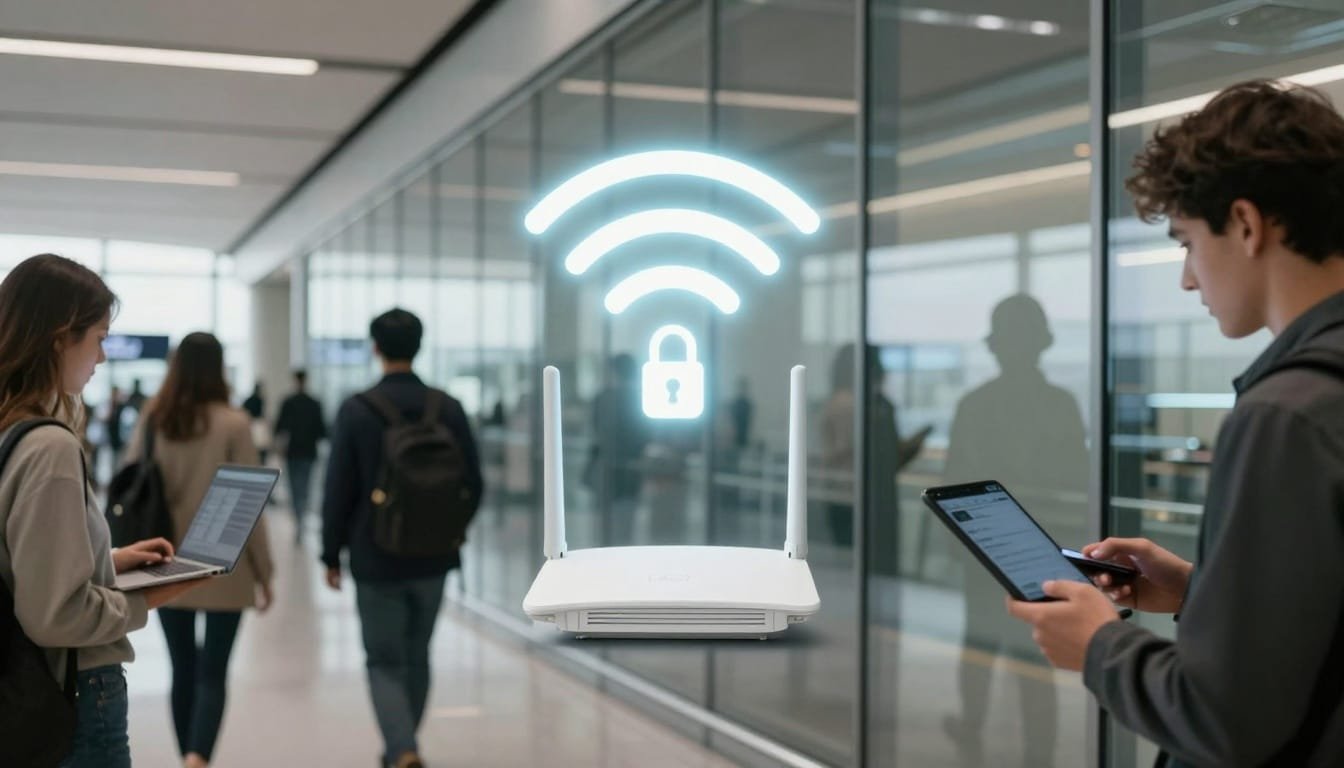
You know that moment when you connect to “Free Airport Wi‑Fi” and a page pops up asking you to accept terms? That page is a captive portal, and most of the time it’s harmless. Still, it’s also a perfect place for scammers to set a trap.
Captive portal attacks are sneaky because they don’t need to “hack” your phone in a movie-style way. They just need you to trust the wrong Wi‑Fi network, then hand over something valuable on a look-alike login page.
I travel, teach, and troubleshoot security issues for a living, and public Wi‑Fi is one of those “it’s fine until it isn’t” situations. Here’s how captive portals work, how attackers fake them, and what I watch for in airports and hotels.
What a Captive Portal Really Is (And Why It Exists)
A captive portal is a web page you’re forced to see before the network lets you browse normally. It’s basically a bouncer at the door.
On legitimate networks, captive portals are used for things like:
- Accepting terms and conditions
- Entering a room number and last name (common in hotels)
- Paying for access, or entering a voucher code
- Tracking usage or limiting time per device
The important part: a captive portal is not “the internet.” It’s just a local web page served by whoever controls the Wi‑Fi. That’s why it’s such an attractive target.
If you want a deeper primer on Wi‑Fi security basics, the Wi‑Fi Alliance overview of Wi‑Fi security is a solid, plain-English reference.
How Captive Portal Attacks Work in Airports and Hotels
When I explain this to non-security friends, I use a coffee shop analogy.
A real captive portal is the cashier asking for payment. A fake captive portal is someone in a convincing apron standing near the line, taking credit cards, and smiling as if they belong.
Most captive portal attacks start with one of these setups:
The “Evil Twin” Wi‑Fi Network
An attacker creates a Wi‑Fi network that looks official, for example:
- “Airport Free WiFi”
- “Hotel Guest”
- “Marriott Bonvoy WiFi”
- “Hilton Honors 5G”
Your device sees a strong signal, you tap it, and you’re connected to the attacker’s access point instead of the real one.
Sometimes they even add a second network with a similar name, counting on you to pick the wrong one when you’re tired, late, or juggling kids and luggage.
The Fake Captive Portal Page
Once you connect, the attacker redirects you to a page that appears to be a normal “Sign in to Wi‑Fi” screen. Then they ask for something they shouldn’t need, like:
- Your email and password (especially a Google, Apple, or Microsoft login)
- A “work login” prompt
- A request to download an “internet certificate,” profile, or app
If you enter credentials, the attacker can steal them. If you install something, things can get worse fast.
The Quiet Part, Traffic Snooping
Even if you don’t type a password into the portal, a hostile network can still watch and manipulate traffic in certain cases, especially if a site isn’t using HTTPS correctly.
This is why I’m strict about staying in HTTPS land when I’m on public Wi‑Fi. The EFF’s HTTPS resources explain why encrypted web traffic matters and what it protects.
Red Flags I Watch for on Airport and Hotel Wi‑Fi
I don’t assume every portal is evil.
Here are the signs that make me pause.
The Network Name Is “Close Enough” to Be Dangerous
If there are multiple similar SSIDs, I slow down. In hotels, I also ask the front desk to confirm the exact network name and whether there’s a password.
If the staff member says, “It’s the one with a lock icon,” but I only see open networks, that’s a clue that something’s off.
The Portal Asks for a Personal Email Password
A real captive portal might ask for your name, room number, last name, or a simple access code.
A portal that asks you to log in with a Google, Microsoft, or Apple ID, or your work SSO, should set off alarms. Hotels and airports don’t need your identity provider password to give you Wi‑Fi.
Certificate Warnings and “Advanced” Buttons
If your phone or laptop throws a certificate warning when the portal loads, I treat that as a stop sign. Certificate warnings can happen for a few reasons, but on public Wi‑Fi, they’re often your only obvious clue that someone is intercepting the connection.
A Download Prompt Before You’re Online
“Install this app to connect” or “download this profile” is a hard no for me, unless I’m on a corporate-managed device and IT explicitly told me to do it.
Attackers love using the portal moment to push malware, fake VPN apps, or shady “security” tools.
The Wi‑Fi Keeps Dropping and Reconnecting
Frequent disconnects can be normal in crowded places, but it can also happen when an attacker is trying to kick devices off the real network so they reconnect to the stronger fake one.
If my device keeps bouncing, I switch to cellular or my hotspot.
My Safer Routine for Using Hotel and Airport Wi‑Fi
I’m not trying to live off-grid. I just want fewer bad surprises.
Here’s the routine I use when I have to be on public Wi‑Fi:
- Turn off auto-join for public networks and “forget” the old hotel Wi‑Fi after checkout. Auto-join is convenient, and attackers count on that convenience.
- Confirm the exact network name with signage or staff, not a random pop-up.
- Connect, finish the portal, then start my VPN (if I’m using one). Some VPNs block the portal from loading until you authenticate.
- Avoid logging into sensitive accounts if I can wait, especially banking. If I can’t wait, I use cellular.
- Watch the address bar once I’m browsing. I want HTTPS, and I don’t want weird redirects.
If you want official, practical advice from a government security agency, the UK NCSC has a clear guide on using public Wi‑Fi safely.
Extra Things I Do for Family Devices and Work Laptops
Public Wi‑Fi gets riskier when you’re not the only one clicking.
For kids’ tablets and phones, I keep it simple:
- I disable auto-join for unknown networks.
- I tell them one rule: “If it asks for an email password, stop and call me.”
For work laptops, I assume the stakes are higher. If I’m traveling for business, I prefer a hotspot. If I must use hotel Wi‑Fi, I keep my VPN on, and I avoid accessing admin panels or sensitive systems unless I’m on a trusted connection.
What I Do If I Think I Hit a Fake Captive Portal
If I connect and something feels off, I'll do the following:
- Disconnect from Wi‑Fi and turn it off for a minute.
- Forget the network, so my device doesn’t rejoin.
- Change any passwords I typed into that portal, starting with email accounts.
- Enable multi-factor authentication if it isn’t already on.
- Check for “new sign-in” alerts in your email account security page.
If you want a straightforward, consumer-friendly walkthrough on account protection and safer connections, the FTC’s security articles are a good place to start, including guidance at https://consumer.ftc.gov/topics/online-security.
Conclusion
Captive portals are normal, but captive portal attacks blend into that normal so well that people miss the warning signs. When I’m in an airport or hotel, I slow down at the exact moment most people rush, choosing the network carefully and treating portal pages like a trust test. If a portal asks for more than it should, or my device throws a certificate warning, I’m out. The goal isn’t to be paranoid; it’s to keep travel Wi‑Fi from turning into a clean-up project later.