If passwords feel like house keys you’ve copied a hundred times and tossed into a dozen junk drawers, you’re not imagining it. Passwords get reused, guessed, phished, and leaked, then we all get stuck playing the reset game at 2 a.m.
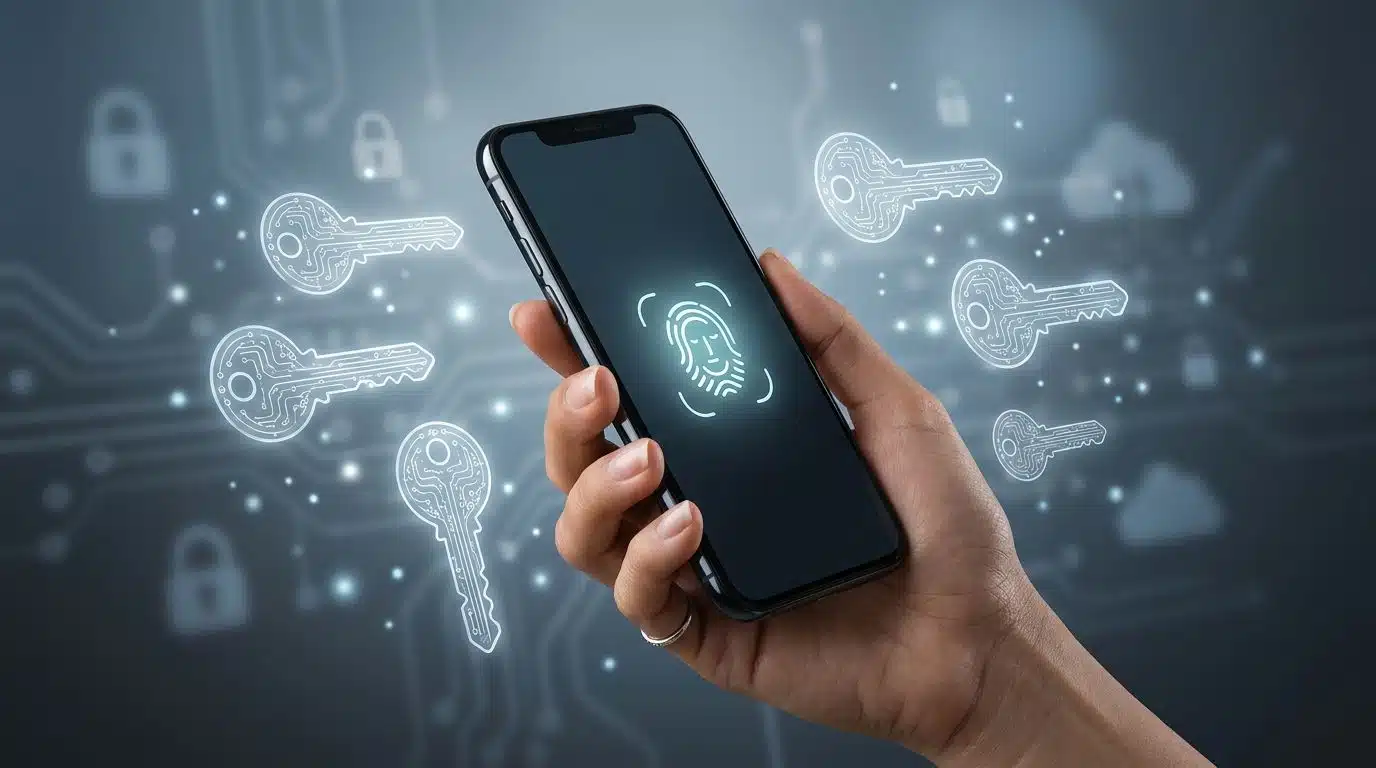
That’s why passwordless passkeys are such a big deal, marking the transition to a modern login standard. They let me sign in using my device (and biometric authentication with my face, finger, or PIN) instead of typing a secret string that can be stolen. Better yet, passkeys are now a first-class login option for Google, Apple, and Microsoft accounts as of March 2026.
In this post, I’ll explain what passkeys are, how they work, and what setup really looks like across the big three. I’ll also cover the parts that can surprise you, like recovery and shared devices.
What Passwordless Passkeys Are and Why They Beat Passwords
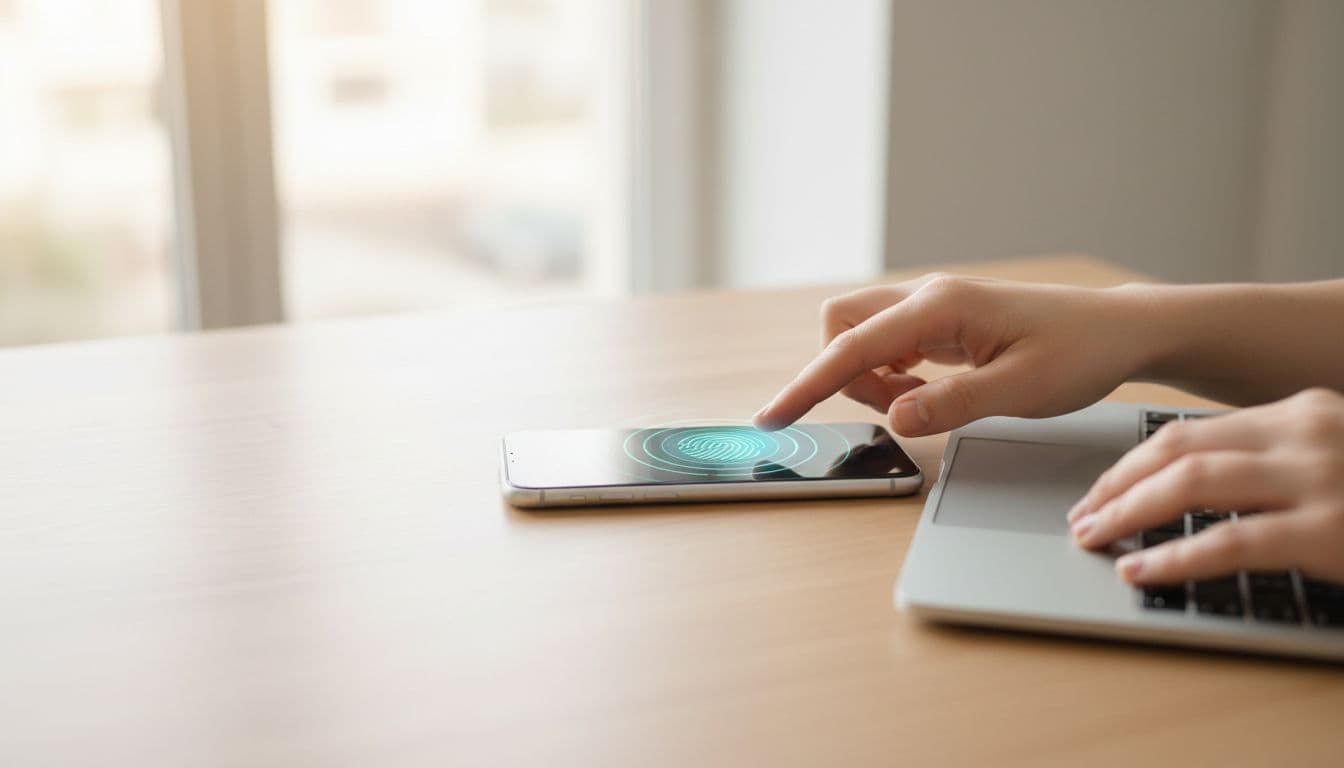
A passkey is a login credential built on public-key cryptography from the FIDO Alliance (often described under the FIDO2 and WebAuthn standards). That sounds intense, but the day-to-day experience is simple: you choose a passkey at sign-in, your device asks for Face ID, Touch ID, fingerprint, or a device PIN, then you’re in.
Here’s the key idea: a passkey can’t be “typed” into a fake site. With passwords, a phishing page just needs to look convincing long enough for you to hand over the goods. With passkeys, the sign-in is tied to the real site’s domain, so the fake page can’t trick your device into completing the login the same way, making passkeys phishing resistant.
Also, your biometric data isn’t getting shipped off to Google or Apple or Microsoft. Your face or fingerprint is just the “unlock button” for a cryptographic key stored on your device. The site never receives your fingerprint. It receives proof that your device has the right key.
If you want a friendly explainer that matches what I see in the real world, I like ZDNET’s plain-English breakdown, what passkeys are and why they beat passwords.
So why are passkeys showing up everywhere now? Because they reduce two ugly problems at once:
- Phishing gets much harder because there’s no password to steal and replay.
- Credential leaks hurt less because servers store public keys, not reusable secrets (passkeys also thwart credential stuffing attacks that automate mass logins with stolen credentials).
Passwords aren’t dead yet, but passkeys are finally practical for normal people, not just security nerds.
How Passkeys Work When I Tap “Sign In” (No Math Required)
When I create a passkey for an account, my device generates a pair of keys:
- A public key that the service can store.
- A private key that stays on my device (or in my device’s synced credential manager).
During login, the site sends a challenge. My device signs it using the private key, after I complete user verification to unlock that key with Face ID, Touch ID, a fingerprint scan, or by entering my screen lock PIN. This is asymmetric cryptography at work. The site checks the signature with the public key it already has. If it matches, I’m authenticated.
That’s it. No shared secrets. Nothing reusable for an attacker to copy-paste later.
I explain it to families like this: a password is like telling the bouncer a phrase. A passkey is like showing up with a tamper-proof badge that only works at the right door, in the right building. A scammer can copy your phrase. That same scammer can’t copy your badge from across the street.
One more detail that matters: passkeys often sync. That’s why they feel “magical” after you set them up on one device. Apple syncs them through iCloud Keychain (now surfaced in the Passwords app). Google syncs them through Google Password Manager. Microsoft can store and use them through Windows Hello and the Microsoft Authenticator app, depending on platform and account type.
If you remember one thing, make it this: passkeys protect you from the “I typed my password into a perfect fake” problem, because the login is bound to the real site.
Passkeys on Google, Apple, and Microsoft Accounts (What Setup Looks Like in 2026)
The good news is that Google, Apple, and Microsoft all support passkeys broadly now. The “gotcha” is that each one stores and syncs them a bit differently, so the experience depends on what devices you actually use.
Before I get into each provider, this is the basic flow I see most often:
- I sign in normally once (or confirm it’s me).
- The account prompts me to create a passkey.
- My device asks for Face ID, Touch ID, fingerprint, or device PIN.
- Next time, I pick passkey and confirm with biometrics.
Google Passkeys (Google Account and Gmail)
As of early 2026, Google passkeys work on Android 9+, ChromeOS 109+, and on Apple devices when you use Chrome. They save to Google Password Manager, which can sync across your signed-in devices.
In practice, I’ll create a passkey from my Google account security settings or when Google prompts me during sign-in. After that, the login is usually: enter my email address, then approve with my phone’s fingerprint or face unlock. On laptops, it often hands off to my phone or uses a local method if supported.
Where Google shines is friction. If you’re already living inside Android and Chrome, passkeys can feel like the default fast path.
Where people trip up is mixed-device life. If your day is “Windows laptop at work, iPhone at home,” you’ll still get passkeys working (with a QR code for cross-device sign-in on non-Android hardware), but you may see more QR handoffs and device prompts.
For a broader, standards-focused view of why Google and the other big players are pushing this, here’s a useful read on FIDO2 adoption across Apple, Google, and Microsoft.
Apple Passkeys (Apple ID, iPhone, iPad, Mac)
Apple supports passkeys on iOS 16+ and macOS Ventura+. They’re stored in Apple’s credential system and show up in the Passwords app, syncing through iCloud Keychain (end-to-end encrypted, assuming you use it).
For most people, Apple makes passkeys feel invisible. I’ll be on Safari, I’ll tap “Continue with passkey,” Face ID pops, and I’m done. On Mac, Touch ID and the system login prompt handle it.
The best part is consistency. The same Face ID you already trust for unlock and Apple Pay becomes the approval for sign-in. That’s comforting for parents and non-technical users because it feels familiar.
The main limitation is the same one Apple always has: you’ll get the smoothest ride inside the Apple ecosystem. If you bounce between Apple hardware and non-Apple devices, you can still use passkeys, but the handoff steps matter more.
Microsoft Passkeys (Microsoft Account, Windows Hello, Authenticator)
Microsoft supports passkeys on Windows 10+ (and Windows 11), plus mobile support through Microsoft Authenticator on iOS 17+ and Android 14+ in common setups. On Windows, Windows Hello becomes the star of the show (face, fingerprint, or PIN).
In real life, this means I can sign into my Microsoft account and approve with Windows Hello, without ever typing a password again on that device. On mobile, I may create and use these digital credentials through Authenticator, which is also handy when I’m signing into Microsoft services on another device.
Microsoft’s world has two flavors: personal Microsoft accounts and work or school accounts tied to Microsoft Entra ID. FIDO2-based passkeys are showing up in both, but your organization can set rules. If you’re a security pro reading this, that policy angle is where your rollout plan lives or dies.
If you want a quick comparison mindset for whether passkeys replace passwords outright or sit beside them for a while, this guide on passkeys vs passwords and what changes summarizes the tradeoffs clearly.
The Stuff People Don’t Tell You: Account Recovery, Backups, and Shared Devices
Passkeys feel like magic right up until the day you lose your phone, break your laptop, or need to sign in on a borrowed device. Then you find out whether you planned the account recovery “what if” part.
Here’s how I keep it sane.
First, I treat passkeys as the primary login, not the only login. Most services still keep passwords as a fallback, and that’s fine. It’s like having a spare key in a lockbox. I just don’t want that spare key to be my daily routine.
Second, I keep strong account recovery options. That usually means up-to-date recovery email and phone, plus more than one trusted device where possible. For high-security accounts, device-bound passkeys or physical security keys add an extra layer since they don’t sync across devices. If you only have one device that can approve logins, you’ve built a single point of failure.
Third, I think hard about shared devices. A family iPad, a classroom Mac, a lab PC, these can get messy because the passkey is protected by whoever can unlock the device. If your kid knows the tablet PIN, they may also be able to authenticate you in some contexts. That’s not always a disaster, but it’s something to decide on purpose.
This is also where classic multi-factor authentication guidance still matters. Passkeys reduce phishing risk, but I still want layered protection for important accounts, especially when recovery paths get involved. If you need a refresher, I’ve got a straight talk version of two-factor authentication basics that explains why extra factors still help.
One more “real world” warning: public Wi-Fi login pages are a favorite trap for credential theft. If a hotel portal ever asks for your Google, Apple, or Microsoft password, I treat that as a giant red flag. Passkeys help here because you’re less likely to type anything secret into a fake page, but you still need to recognize the setup. My deeper breakdown on spotting fake Wi-Fi login pages is worth a quick read if you travel.
Passkeys reduce risk, but recovery settings decide how bad a bad day becomes.
How I Recommend Switching to Passkeys Without Breaking Your Life
I like passkeys, and I’m using them more every month as part of the broader shift to passwordless authentication. Still, I don’t treat this like a switch I flip once and forget. I treat it like upgrading the locks on my house while I’m still living in it.
My practical approach looks like this:
I start with my most abused accounts: email and cloud identity. That’s Google, Apple ID, and Microsoft. Those accounts often reset everything else, so they deserve the strongest login with passkeys.
Next, I set passkeys on at least two devices when I can, using CTAP so they communicate securely to complete a login. For example, phone plus laptop, or phone plus tablet. That way, a lost phone isn’t an automatic crisis.
After that, I clean up my password habits instead of pretending passwords are gone. A password manager still matters for the many sites that don’t support passkeys yet. Also, I keep unique passwords for the services that remain password-based.
Finally, I keep 2FA enabled where it makes sense, especially on social accounts that get targeted for takeovers. If you want a quick walk-through for the apps families actually use, this guide to set up 2FA on social media is a solid weekend project.
For the “are we really near the end of passwords?” angle, I like this perspective on the rise of passwordless authentication in 2026. It matches my take: passkeys are the direction, but the transition to passwordless authentication is uneven.
Conclusion
Passwords had a long run, but passwordless passkeys are the first replacement that feels both safer and easier. Google, Apple, and Microsoft now support them widely, so you can use face recognition, a fingerprint sensor, or device PIN to sign in without handing attackers something reusable. My advice is simple: enable passkeys for your core accounts, set up recovery like you mean it, and keep a password manager for the rest. If you do that, you’ll spend a lot less time resetting logins, and a lot more time actually using your tech.