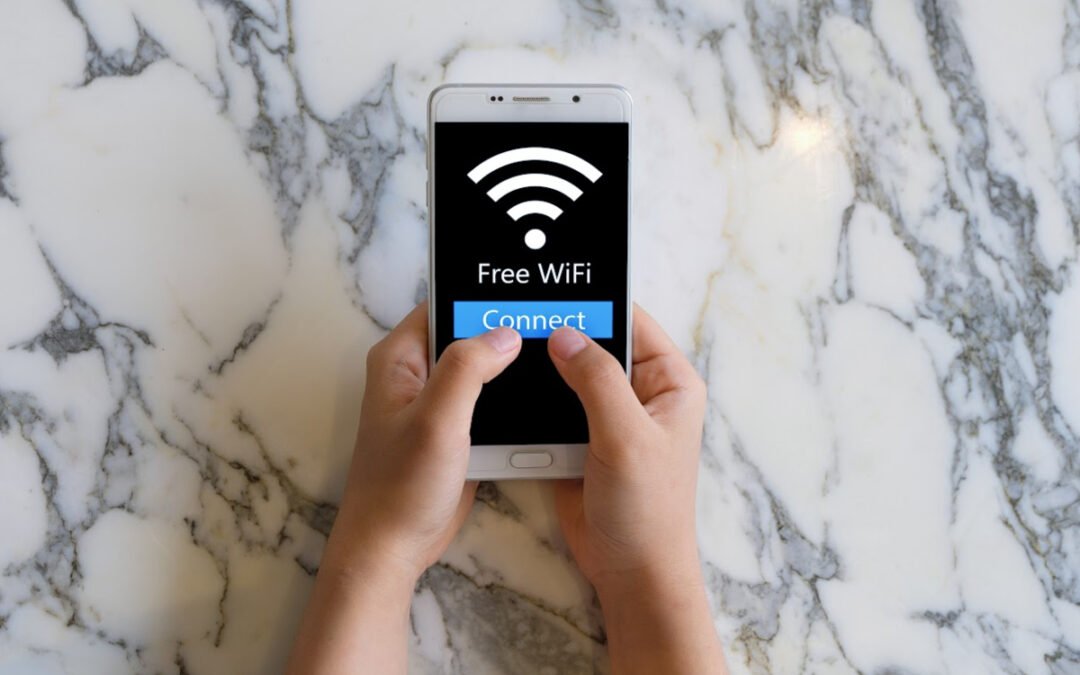
When you're out and about, it's really convenient to use public wifi. But before you do, you should be aware of the security risks involved. Public wifi can be found in a lot of places, like libraries, restaurants, fast food joints, hospitals, and even some public parks. And it's true that having public Wifi can be really helpful and convenient. But there are also some serious security risks that come with using public Wifi (almost too many to mention). For example, public wifi is often unsecured, which means that your personal information could be at risk.
Hackers LOVE public Wifi users. Hackers could potentially access your private data, like your passwords or credit card information. If you're going to use public wifi, it's important to be aware of the risks and take steps to protect yourself. For instance, you might want to avoid doing sensitive activities like online banking or shopping while you're connected to public wifi. Or you could use a VPN (Virtual Private Network) like ExpressVPN, to encrypt your data and help keep it safe. Ultimately, whether or not you use public wifi is up to you. But it's important to be aware of the potential risks before you decide to connect.
Top Security Risks Of Using Public WiFi
In this era of technology where we feel the need to always be connected, everyone needs a WiFi connection. It could be for receiving important emails or approving projects or maybe for connecting with close ones instantly. I’ll be honest, it’s nice to be able to stay connected without having to be cemented to an office chair. Many times, the only choice for that connection seems to present itself with the use of unsecured public WiFi. Free public hotspots may benefit you, but these are more fruitful for hackers to achieve unbound connections to unsecured devices on the same single network. I wanted to briefly touch upon the top security risks of using public WiFi and how you can stay protected.
The use of free public WiFi comes with various risks. Still, the most threatening risk is an amazing opportunity for the hackers to direct themselves between you and the same connection spot. It’s so important to remember this: You are not just connecting with the free hotspot, but you are sending your data to an unsecured connection.
Anyone using public WiFi is at risk as they provide an opportunity for a hacker to invade their data and become cyber victimized.
Global Risk reported in 2020 that cyberattacks were the fifth top-ranked risk for people and companies working across public sectors. Think about that for a second…the FIFTH highest ranked risk for people across the globe (Theft of Data or Money was 8th!). And it makes sense considering that hackers can access all your important information, from personal images and emails to credit card numbers and even your business files. Having your personal data hacked and compromised can wreck your life. One could even argue that these cyber threats are equally as important as issues revolving around climate change and economic frictions across the globe.
2. Viruses And Malware
One of the biggest risks of using public WiFi is installing malicious software on your devices (oftentimes, you don’t even know you’re doing it). Sometimes, hackers infect public WiFi and then get a penetration route to devices that connect to it. They make a pop-up window to show a notification about upgrading popular software during the connection, thinking that it’s a real notification, a user clicks and installs some type of malware.
3. Stolen Personal Information By System Update Alerts
Hackers always try to discover unique ways to hijack information and devices. System update alerts are one in which an android or smartphone user constantly receives fake system update alerts to enable data exfiltration. That’s just a fancy word for data theft. This type of attack can be the result of a user clicking on a malicious link coming from an email message or SMS message.
Aside from these mentioned above, there are still several other serious security risks of using public WiFi like network snooping, rogue networks, encrypted connections, session hijacking, and more. This leads to the questions: What am I supposed to do? Am I supposed to never connect to public Wifi? If I connect to Wifi, how do I protect myself?
How Do You Stay Safe From The Risks Of Public WiFi?
Firstly, it’s okay to connect to public Wifi, but you need to understand the risks (we talked about above), but even more importantly…you need to know how to stay safe and protect yourself. To protect your data, you should use some basic safety precautions while using public WiFi.
Utilize VPNs
I’ve talked about this in so many articles because I believe in it. Use a Virtual Private Network (VPN) while connecting your devices with an unsecured connection. It will encrypt your data strongly. There are VPNs for all of your devices (laptops, tablets, and smartphones)
Surf The Web Securely
This is not a bulletproof tactic, but it’s a little hack you should always adopt regardless if you are on public Wifi or not. Most all browsers now support a feature called “Use HTTPS” (you can find this in the settings within the browser of your choice). When you enable this option, it will encrypt your communication and potentially keep your data secure from a hacker. Trust us. Enable this feature!
Stop Sharing Info
Turn off any data sharing from your system control panel while connecting with public WiFi. This is an easy fix. On the Windows side of the world, when you connect to a new wifi connection Windows will ask you if you want your system to be seen by other computers on the network....choosing "No" will shut down the sharing features.
Turn Mobile Data Off
You should keep your data off when you don't require it because some active WiFi hardware can still share your data to any network within the range. Most smartphones will have this option under some networking group settings.
Very rarely do I pound the drum on getting a device with as much fervor as I do with Firewalla products. I will not connect to public Wifi unless I’m routing that connection through my Firewalla Purple device. Period. I’ve written an extensive review on the product, but some of the main benefits of this handy hardware are that it will protect your devices and data from cyber-attacks, blocks ads (and malicious pop-ups for that matter), and you can have all the devices work through the hardware so no one in the family is at risk.
In this interconnected age, people can still face and encounter digital problems with all the preventive measures. I get it. Even with all the fancy software, apps, and hardware…there are times I still don’t feel safe because I know there is a constant barrage of people out there trying to get my personal data. And at some point throughout everyone's life, a time will come when a free, unsecured public WiFi network is only the choice available. But before you dive into that abyss of security muck and misery, consider the risk of using public WiFi and make sure you’re protected.
Public Wifi can be pretty handy. It's great for when you're out and about and need to get some work done. But as outlined above, there are definitely some risks that come with using public Wifi. It's so vital to be aware of the potential dangers and take steps to protect yourself. Overall, I try to steer clear of public wifi, but if I do use it, I make sure to take the necessary precautions.
Do you have an Android smartphone? Did you know phones can be at risk of viruses? Just like your computer, your Android phone can be at risk of getting viruses and other malware. With malicious software and hacks on the rise, we wanted to discuss the best antivirus options for Android smartphones. We will also provide tips on how to keep your phone safe from viruses and malware.
Smartphones are an integral part of our routine life. Previously they were merely a source of communication. But the introduction of the internet has transformed smartphones into mini PCs. You can send and receive important data, including files, images, documents, etc. The availability of such essential data puts your android smartphone at the risk of malware and data-theft activities.
It makes your android smartphone susceptible to viruses and requires a reliable antivirus application. Though Google kicks out suspicious applications through the play store, you should not merely rely on it and it’s best to invest in a promising antivirus application. Below are listed a few antivirus software that lets you protect your phone from malware, and some of them contain multiple other unique features.
Bitdefender Mobile Security
It is the most reliable antivirus for android smartphones, among other available options. It provides robust protection against malware and data-theft activities without draining much battery of your android smartphone. It contains multiple features, including an app lock that lets you lock up certain apps through a PIN.
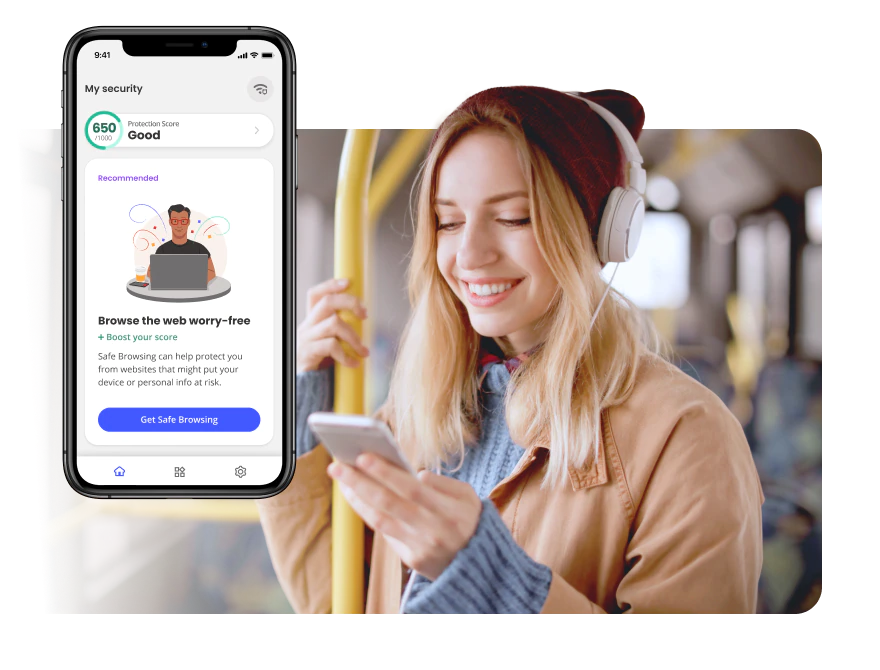
Another versatile feature of Bitdefender is “Scam Alert,” which warns you about suspicious links in messages and screen notifications. It also possesses web protection that warns you about dangerous sites that might steal your passwords and other sensitive data. This added benefit is one of the features I absolutely love about Bitdefender. You also get a VPN if you choose Bitdfender’s services, but it is a limited version. You have to pay extra if you want more data.
If you want to install Bitdefender only for your Android device, it will cost you about $14.99 annually. That’s definitely a reasonable price. However, another version of Bitdefender Total Security enables you to install this software on up to five devices, including PCs, Macs, Laptops, iPhones, and Android tablets and smartphones. It costs you worth $44.99 for the first year and $89.99 per year after that. It’s close, but Bitdefender Mobile Security is my choice for the best antivirus app for android.
Norton 360 Mobile Security is another top-notch antivirus for android smartphones. With Norton 360, you will get everything integrated into a single application, including an antivirus, a VPN, and an ID protector. Norton 360 escapes 100 percent of the malware without compromising the battery health of your phone or its performance. If you’re someone who struggles with battery usage issues, this is the antivirus option to keep your eye on.
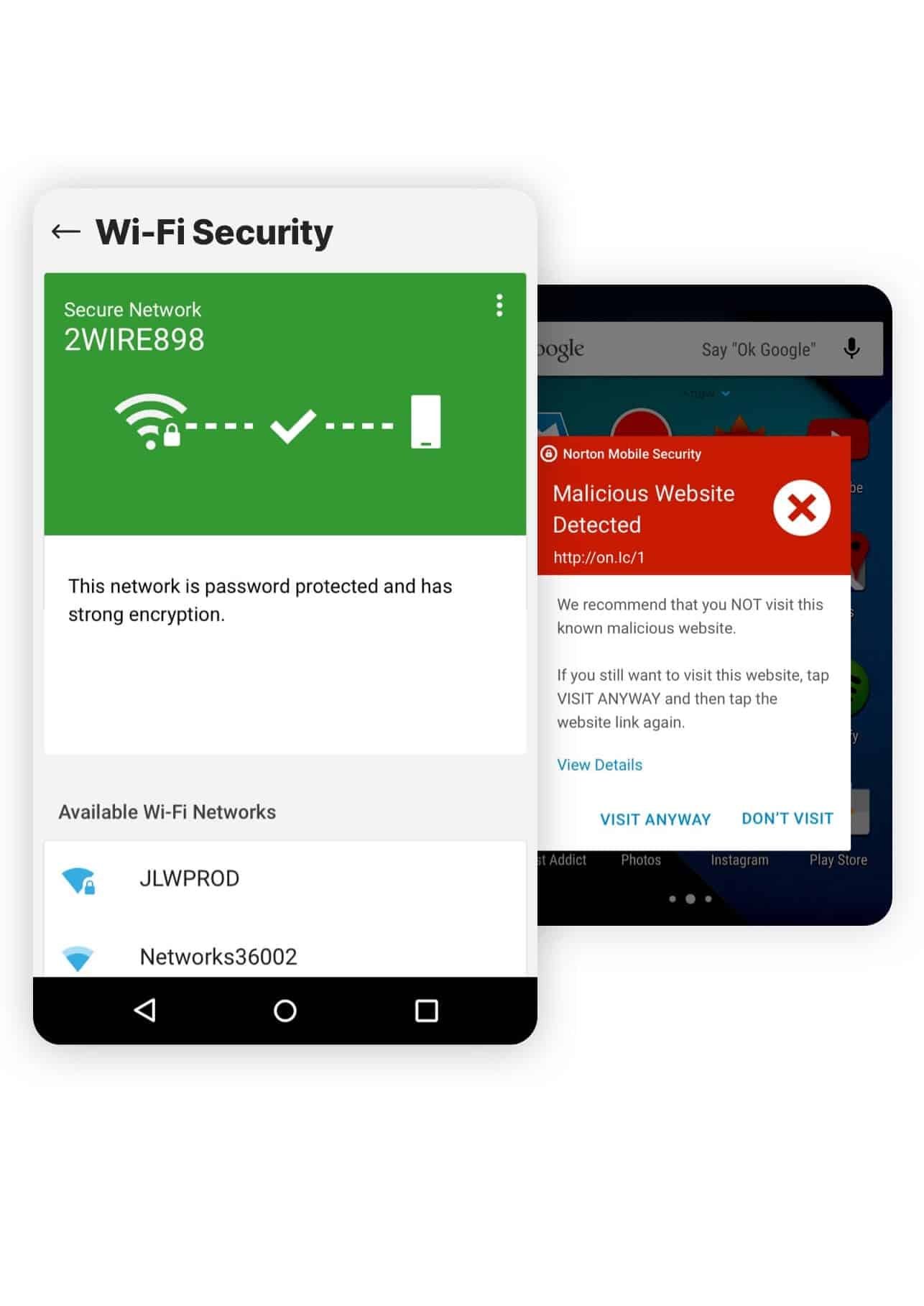
Besides malware, it also alerts you from dangerous links in text messages and suspicious web pages and warns you about public Wi-Fi networks. Norton 360 possesses another versatile feature, and that is an app advisor. Norton’s app advisor lets you know about risky apps before installing them from the play store and warns you about existing applications on your phone.
Previously Norton was a free antivirus software, but now it comes with a monthly subscription. The subscription ranges from $15 per year for a single device subscription. Furthermore, you can also opt-in for Norton 360 Deluxe, which lets you connect with up to five devices and costs you about $35 for the first year and $105 after that. Again…if you’re looking for antivirus protection on multiple devices, I love this option.
Subscribing to the standard version of Norton and not the basic version allows you unlimited VPN and dark web monitoring. Features like call blocking and device recovery (stolen) are available on each Norton 360 Mobile Security version.
McAfee Security has replaced its free version known as Mobile Security. This new version contains VPN integrated into a single app. To use its services, you must subscribe to it since it does not allow you a free version.
McAfee Security is another reliable antivirus for android smartphones that can escape 100 percent of the malware. The protection from malware runs in the background instead of manually running it to perform a virus scan. Can you run into performance issues with McAfee running in the background? Yes. But you have to weigh your options and do your own benefit-risk analysis on if you really want to be at risk with viruses on your phone.
Another feature of McAfee is a Wi-Fi scanner that alerts you about public Wi-Fi networks if it is not safe. We’ve talked exhaustively about using public Wi-Fi networks (and even your friend’s Wi-Fi for that matter). This little feature is a nice added bonus I love. You will also get the option of using a VPN if you connect to a risky Wi-Fi network. For that option of unlimited data for VPN, you need to set your subscription to auto-renewal mode. Otherwise, you will merely get 500 MB of data for VPN per month.
You can also keep track of your personal information like email addresses, bank accounts, social identities, and many more using McAfee Security, which warns you about possible data breaches. However, you need to set your subscription to auto-renewal. Otherwise, you can merely control ten emails.
There were some features like call blocking, warning about dangerous links, app locking, and anti-theft features that are missing that I think would really move this app up there with Bitdefender and Norton 360 if it had them. However, if you are looking for a reliable antivirus only, McAfee is a perfect fit for you. It’ll cost you $49.99 annually and connects up to ten devices, including Windows, iOS, Android, and Macs.
No…Not All Antivirus Apps For Android Are Created Equal
There are plenty of options for antivirus for your android smartphones. However, you need to be extra careful while investing in any. Be diligent in finding the right one for you. AV-Comparatives tested 250 antivirus applications for Android smartphones. Less than a third of all applications worked against malware. Shocker? Not really. Antivirus software is a dime a dozen nowadays and most hardly do their intended job effectively. Out of the ones we reviewed, I wouldn’t trust any but these three if I was going to download an antivirus app for my android phone.
Do you ever feel like you need a security badge to access your email account? Or that you need a secret password just to buy something online? If so, you're not alone. The internet can be a scary place, especially when it comes to our personal information. That's why two-factor authentication is becoming increasingly popular (and from a user perspective…very annoying). But what is two-factor authentication, and do you really need it? We wanted to highlight this ever-evolving security measure that’s being used just about everywhere.
What Is Two Factor Authentication? Do I Really Need It?
Two-factor authentication (2FA), a sort of multi-factor authentication (MFA), is a security procedure that cross-verifies people using two separate types of identity. It’s most widely used with business and finance applications, but it’s being used more and more with email addresses and particular evidence of ownership of a mobile phone. Even if an attacker gets beyond the initial authentication stage, two-factor authentication (2FA), used in conjunction with username/password verification, makes it far more difficult for these hackers to get unauthorized access. As annoying as they seem (I bet I have to authenticate a dozen times a day at least), they are another layer of security one has to appreciate when it comes to keeping our data secure.
Two-factor authentication (2FA) is a security measure that is often used in online banking, social media, finance applications, and e-commerce to protect the most sensitive portions of a website (such as admin panels or places that contain credit card information and personal data). Additionally, two-factor authentication allows businesses and governmental institutions to be more productive and efficient by enabling workers to conduct distant jobs with significantly fewer security worries. When I hear people complain or ask me how important 2FA is and whether they need it, without hesitation I respond, “YES!” Although it is not a bullet-proof method to keep hackers or malicious software from diving into our personal and sensitive data, it is essential when it comes to security. Let’s dive into why two-factor authentication is so important…
Why Do We Need Two Factor Authentication?
Let’s reiterate this: Passwords are still critical for your security. Just because you’ve enabled 2FA doesn’t mean you can have easy to guess passwords like “Password1234” (and yes…that is a very popular password used on the internet by real people). Having a hard-to-guess password just doesn’t have the same impact as it once did. Passwords that are too easy to guess (even hard ones to a certain extent) are often reused across several websites. More than that, hackers have amassed a staggering amount of personal information (a lot of public), including usernames and passwords. Because of these factors, passwords on websites are no longer as safe as they once were.
The usage of two-factor authentication on any essential internet (web-based) account, such as a bank or trading account, is critical. We pound the drum quite often at DDID about security and your personal data. If you use an app or a service that has two-factor authentication, it is vital that you enable it immediately.
Here's a brief overview of the benefits of enabling two-factor authentication (2FA) and some of the more popular methods of where it’s used.
1. Text Messaging
Text messages are used as a two-step verification method. Your registered mobile device number will get a login code through text message. Two-factor authentication from this method is simplified to its most basic form. You just need a phone and a wireless connection to get started. Sending a text to personal accounts often uses 2FA, but it's not without its drawbacks. There are some vulnerabilities using this method. Someone might impersonate you to the phone provider, seize your phone, and get illegal access to your accounts by posing as you.
Employers that do not have their own personal phone lines should be mindful of using this strategy. Using an employee's personal phone number puts the company in danger of a fired employee causing significant harm or just having access once they leave. Personal phone plans may not cover all locations, so workers on overseas business trips run the risk of losing access to their accounts.
2. Authentication Application
Authentication app 2FA generates an authentication code using a mobile app (Authy and Authenticator are two very popular apps with this). Once you've entered this code, you'll be able to log in. Users don't need a wireless network to utilize applications, as opposed to text messaging. Anyone with an internet connection may view their account. Apps like Google also provide a list of backup codes in the event of network issues. As much as I hate to have to use one of these authentication apps to gain access to one of my accounts, this is a very popular and very effective way to secure your data with 2FA.
3. Biometric Two-factor Authentication
It's possible to use biometric 2FA to protect your account by requiring that you provide something that is uniquely yours in order to log in. The camera on your computer or tablet may scan your retina or face for biometric verification. Or your fingerprint may be required for tablet biometric verification.
These approaches are becoming more popular, but there are certain drawbacks to keep in mind. Biometric data theft is on the rise. Information about your retina or fingerprint, unlike a password that can be changed, would compromise your security and privacy forever. However, I still think this is the most effective usage of 2FA.
How Does Two Factor Authentication Make Your Account More Secure?
You're taking an extra step to ensure that you're making good security choices when you sign in. Even if someone has your password, they won't be able to access your account from a different device since the verification will be transmitted to your phone number (or other methods). When someone attempts to log in to your account and clicks "submit," a page asking for a code will appear. This code has been sent to the registered mobile phone number by SMS. Depending on your account settings, certain applications may utilize other devices signed in to send you notifications. Two-factor authentication has a wide range of options.
When it comes to protecting your online account, never rely just on a login and password. We’ve highlighted that quite a bit above. It's too simple for hackers to get into your accounts these days, as seen by the recent spate of corporate security breaches.
Two-factor authentication is not, however, a perfect method of preventing commerce fraud.
These 2FA recommended practices should be followed in addition to the use of text messages, authenticator applications, or biometric approaches.
Use A Business (Or Google) Number
Use a business number for SMS 2FA authentication instead of your personal phone number
It's fairly uncommon for phone service providers to be duped by sophisticated hackers into altering their account information. You may instead use a dedicated Google Voice number that you can always maintain and that a phone service provider cannot modify.
Avoid Resetting Your Password By Email
This one is hard to avoid, but more services are allowing you to reset passwords other than using your email. Resetting your passwords through email is a time-saving option. Using merely your username and password will allow a hacker to access your account without having to go through any additional 2FA steps you've put in place.
Use Multiple Verification Methods
If it’s available, I highly recommend using more than one kind of verification to ensure your identity.
With several 2FA methods, you can protect many accounts. And the more 2FA methods you use, the more secure your information becomes.
DALE TIP: If I get a text message from Amazon (or Walmart, Instagram, Facebook, Netflix, etc) saying that I need to “Click this text link to finish my two-factor authentication 2FA”...and I didn't initiate the 2FA process, I don't click the link.
An Easy Security Measure To Protect Your Data
I will yell from the rooftops over and over again: Enabling two-factor authentication is one of the EASIEST and MOST effective ways to beef up your online security. If you’re not doing it, you’re taking a risk with your personal information. In the digital world, two-factor authentication is gradually becoming the standard, so you better hop on board and get with the program. It is already available in most banks, cloud storage providers, and social networking platforms. When feasible, use two-factor authentication (2FA). Prevention is always better than cure, as they often say.
Guest wifi networks can be a lifesaver when you have guests over and don't want them to use up all your bandwidth, don’t want them to know the password to your main network, or when you need a separate network for your printer or other devices. In this guide, we'll show you how to set up a guest wifi network on your wifi router. We'll also give you some tips on securing your guest network so that your guests can't access your main network's files and devices.
Setting Up a Guest Network On Your Wifi
In this digitally connected world, everyone wants to stay updated, be it at the home, office, or a friend's house. It’s hard to say no to someone visiting your home when sharing a WiFi password. Sharing a network leads to slowdowns, network disruptions, and security issues. However, setting up a guest network on your WiFi helps overcome these issues. Depending on the router, you can also do some cool things like (slow the bandwidth of your guest network). One of my biggest pet peeves is when someone gets immediate access to my network only to upload photos to cloud storage or update all their apps on their smartphone.
A guest network benefits the network owner in so many ways. Guest networks enhance internet coverage, decrease the slowdown ratio, and eliminate potential security issues.
What Is A Guest Wifi Network?
A guest network is separate from a person’s primary internet connection. It restricts and prohibits the connected devices from accessing the main network. All devices connected to the guest network cannot access the main network.
The guest network has its SSID that differs from the SSID of the main network. Sometimes the devices connected to a guest network are infected (despite the device’s owner knowing or not). If set up properly, these infected devices most likely can’t infect your personal devices on your main network. Guest networks leverage network owners to keep their devices secure from any malware or malfunction activity.
Setting up a guest network on Wifi is easy. It simply depends upon the router settings. Most routers allow an additional network by routinely logging in as administrators. Some routers require manual settings to access the guest network. However, most of the routers follow the same settings. What is listed below are general instructions on how to set up a guest network. Depending on the router you have, these steps might slightly differ.
Step 1: Access Router’s Admin Dashboard
This is actually easier than one might think. Open any browser of your choice. Type IP address in the address bar. Now press Enter to proceed further. From there you’ll want to enter the admin login information. If you’ve accessed this before, use those credentials. If not, they’re most likely listed on your router.
Step 2: Go To Wifi Settings
When you enter the IP address and press Enter to proceed further, you will see the router's admin panel. Click on the option of Advanced (or something similar) to access additional settings.
Step 3: Access Guest Network Settings
Click on wireless settings and select the Multiple SSID option (or something similar) from the drop-down menu.
Step 4: Setup Guest Wifi
Setup guest Wifi by following these general steps:
Guest network options are usually switched off by default. Enable the guest network from the status field and Turn it on (or enable).
Now name your guest network. Type any name you like in the SSID field and press Enter. This will be what the public sees when trying to connect to your wifi.
The Access Control will open a drop-down menu. Choose the option of WAN. This option restricts the guest users from accessing any file from the network. This is really important. And if someone wants their network storage accessible to everyone, they should choose the option of LAN-WAN.
Step 5: Secure Guest Network
Security of the guest network is vital to restrict any malfunction. One of the biggest mistakes I see when folks set up a guest wifi is they keep it open for anyone to access without security measures (password). To secure your guest wifi network, follow these steps:
Choose the option of WPA/ WPA2-PSK from the drop-down menu of Authentication Type.
Create a strong password and remember it for future use.
Click on the option of Save to save all the settings.
A little tip: Remember this area in your admin dashboard because it is a home network security best practice to change your guest wifi regularly (at least once a month).
Network security is one of the key reasons to create a guest network. The ones who have access to the password on your main home network may also have access to all potential devices connected to the internet. Smart speakers, WiFi cameras, streaming devices, and printers are all connected to the same network. A guest wifi network prohibits access to all devices connected to the router. There are major security benefits of implementing guest wifi.
And it’s not to say that people you want to share your wifi password with at home do not pose any security harm or threat to others, because 99% of the time they don’t (at least maliciously). But…sometimes, their devices are infected with some malfunctioning activity that passes the security threat to other users. I’m sorry, but you can’t control what others do on their own devices on other networks. And when they connect to your main wifi network, it could present a potential security danger. In such a case, a guest network builds a security wall, restricts access to the main network, and ensures minimal security risk.
Data safety is the priority of everyone. Once you have successfully created a guest network, the next step is to secure your network from external threats. Make sure all of your IoT devices are secured by following these steps:
Monitor Internet Usage
Some routers provide statistical information about bandwidth usage. This allows network owners to check who is currently using the Internet and for how long. I can also block certain websites and types of content they access. This again depends on the type of router you have.
Limit The Use Of Bandwidth
Set limit on bandwidth use with wifi guest access management. This enables the owner to keep a check on excessive bandwidth usage activities. As mentioned above, my biggest pet peeve is when a guest gets access to our network (guest wifi or not) and immediately starts the downloading party.
Opt For The Most Advanced Encryption
While installing wifi, you will see security options named WPA, WPA2, and WPA3. WP3 is considered the most advanced security option to encrypt wifi signals, but it is only available in newly released routers. WPA2 is readily available and considered the best option. As for your guest wifi, to make it secure you want to have the best option. Start with WP3. If that isn’t available then try WPA2 and so forth.
Keep Your Guests Connected With A Guest Wifi Network
A guest network enables network owners to share the bandwidth with others without sacrificing the integrity of their network security. This maintains a secure connection and ensures that the devices are not prone to threats. Setting up a guest network provides convenient and smooth internet access and reduces interference with sensitive data. Guest wifi networks are a great way to keep your guests connected and also help you secure your own network. All you need is a spare router and about 10 minutes of your time!
We all know that we need to have a router in order to get online, but not everyone knows exactly where to put it. Do you put it in the living room? The bedroom? The kitchen? I’ve seen some routers put in the weirdest places that often have me scratching my head and asking, “But why?” We’re going to break down some of the best places to put your router so that you can get the best possible signal and connectivity. We also have some pointers on how to improve your router's range if you're having trouble getting a good signal in certain parts of your home.
Finding the place to put your router to get the best output can be tricky. People buy the most expensive routers with multiple antennas to get incredible signals all around the house. But even that doesn’t always work. In many cases, the problem is not the router but its placement. Here’s what you need to keep in mind to find the best place to put your router.
Finding Best Place for A Router
Here are some tips to keep in mind while deciding the place for your router. We get it, finding the best place for your router isn’t always easy. And let’s face it, they don’t build homes around getting the best wifi signals.
1. Place it in an Open Area
Back in the old days, old routers were hefty in size, which led many to decide on a location that could hide it easily. The latest models of routers are pretty sleek, which means there is no more need to hide them. And some of them actually look really good in your home. However, be aware that too many electronic items near the router, especially baby monitors, cordless phones, and other devices, can also impact the performance of Wi-Fi signals. So choosing a location that is not obscured by a wall or any furniture is the best bet to get unhinged broadband quality.
Kitchens are generally the busiest and most high-temperature areas in a house. Also, there is always the risk of spilling something on the router. Kitchens are filled with electronic appliances that disrupt the signals a router device needs to work. There’s probably more metal in your kitchen than in any other room in the home. And it is by far the room in the home with the most potential interference. Quite honestly, the kitchen is just not the best place for your router.
3. Placing it in the Center
Routers transmit signals in all directions. Imagine a 360-degree output signal from the router. Placing the router in the center of a house or a room is the right way to distribute signals equally and provide the best coverage possible. Many modern routers have a strong range to cover a moderate area if placed centrally completely. This is one reason why I LOVE Wifi mesh routers because the technology can broadcast a wide net of a signal for your home.
4. Get Your Router Off the Floor
A wall-mount or a shelf is generally the best place to put a router on as it helps emit signals more efficiently than a floor and makes it more secure. A floor’s foundation covered in carpet can also eat up the coverage bubble of the router when placed on it. And if your router can’t breathe, you’ll get about half the life out of it AND it will affect its performance. While covering a two-story house, placing it near the first floor’s ceiling would be the best way to get coverage on both floors. And please avoid the basement. If you place our Wifi router in the basement, you’ll lose quite a bit of distance as the concrete walls are not very thin! Concrete will act as a damper for your signals. In fact, in my house, I lost almost 50% of my signal when I tried it as an experiment. For those of you living in basement apartments…you really want to look at those mesh routers!
Many routers come with adjustable antennas. Tweaking it a little can help boost the coverage of the router. Placing the antennas upwards results in better horizontal reach while turning it sideways can boost signals upstairs. Again…this all depends on where you put your router.
6. Avoid Mirrors
Mirrors and fish tanks near the router impact the signals negatively. Water inhibits Wi-Fi signals, lowering the radio frequency of a router. On the other hand, mirrors reflect the signals by scattering their performance. Whenever I tell people this, they think I’m joking, but you seriously want to avoid mirrors.
A Few More Router Placement Thoughts…
Experimenting with the different locations is the key to getting the best router results. Keeping the points mentioned above in mind can get you the perfect spot for the router. Selecting the latest Router model available can also help in boosting Wi-Fi signals. So what can you do to make sure you choose the right router for your home? This is a question that many people ask me, but there is no easy answer. Honestly, it depends on your needs.
There are a few different factors to consider when choosing a wifi router. One important consideration is the size of your home. If you have a large home, you’ll need a router with a strong signal that can reach all corners of your house. Another important factor to consider is the number of devices that will be connected to your wifi network. If you have a lot of devices, you’ll need a router with a high capacity to handle all of the traffic. And finally, you’ll also want to consider the features that are important to you. Some routers come with built-in parental controls or guest networking features, for example. When it comes to choosing the best wifi router for your home, there is no one-size-fits-all solution. However, by considering your needs and wants, you can narrow down your options and choose the best router for your situation. Below are reviews we’re written on a few Wifi routers that we highly recommend. Each one is different and you’ll need to determine which features are important and the right fit for your home.
If you're like most people, you're probably not as tech-savvy as you'd like to be. And that's okay, there's no shame in admitting that you need a little help now and then. One area where it's especially important to stay up-to-date is with your internet browser. So if you're using an older version of Google Chrome, we urge you to update it immediately. Google Chrome is easily the most popular internet browser. It is easy to download, install, and use. The best part is that the browser stays fresh with new updates every now and then. In fact, based on our personal use of multiple browsers, Google Chrome has the most frequent updates of any browser on the web.
But, the real question is, why should you update your Google Chrome browser? Several factors can cause inconvenience to you if you use an outdated browser. Here are the top 5 reasons to update your Google Chrome browser immediately.
5 Reasons to Update Your Google Chrome Browser in 2022
Google Chrome is used by millions of people every day for all sorts of activities, from shopping to banking to checking email (and a whole lot of other purposes). Those are just a few of the reasons, but let’s dive into more details on why you should update your Chrome browser right now.
1. Stay Secure
The biggest reason to update your Google Chrome is to tighten up the security. When any software is outdated, it makes an easier target for attackers to exploit. They can easily get access to your necessary information with simple attacks. The same can be said for Google Chrome.
People store valuable information on the Google Chrome browser (email passwords, credit cards, etc). Whether it is your account details or history, your data can be easily leaked if you do not update the browser. There are minimal to no chances of cyberattacks with the latest updates installed. Since Google accounts are shared through various other platforms, protecting your data becomes even more essential.
Google Chrome does not let users get bored of its UI design. That is why almost every update comes with a new aspect of the browser’s appearance. It allows you to surf the web with a fresh-looking browser.
Google Chrome updates always come with new features. Almost every major update integrates something new and valuable to the browser AND adds something valuable to the user. You might be missing some key features in your outdated version that can cause you to lack behind.
4. Optimized Speed
This is probably one of the most underrated reasons (and often overlooked) for updating your internet browser. The only big complaint most people have with Google Chrome is its speed. While the browser is quite fast, opening multiple tabs can slow down your device if it is not compatible enough. Luckily, the browser keeps adding new features that minimize the load time and offers optimized speed. So…if your Google Chrome is getting slower, it’s the right time to update it.
5. Fixed Bugs
Yes…even Google products get a bug or two. With every update, you might find some minor glitches. Sometimes, these can be major and affect the browser’s overall performance. However, Google Chrome fixes its bugs in every update to offer you an error-free experience.
Google Chrome’s latest updates added and enhanced the following features:
Tab Group Saving: Grouping tabs are an excellent feature that helps multiple research sites at once. However, saving these grouped tabs allow you to take a break and continue from where you left off.
Add Notes to Saved Passwords: Saving passwords helps you save time. But, with this new feature, you can add notes with passwords to remember the context of your login details.
Updated Downloads: Now, you can view individual progress bars for each download. Plus, the options in the list are made more interactive.
What Are You Waiting For?
Get updating! It’s important to keep your browser up-to-date so that you have the latest security features and can take advantage of the newest updates and improvements. Plus, who doesn’t like a little, shiny new thing? Updating your Google Chrome browser is easy, just follow these simple steps and you’ll be securely (and up-to-date) browsing in no time:
Step 1: Open Google Chrome
Step 2: Click the three dots icon in the top right corner of the browser.
Step 3: Click “Update” (if it’s available). If it’s not available the chances are that you already have the latest version.
Step 4: Click “Relaunch To Update Chrome”
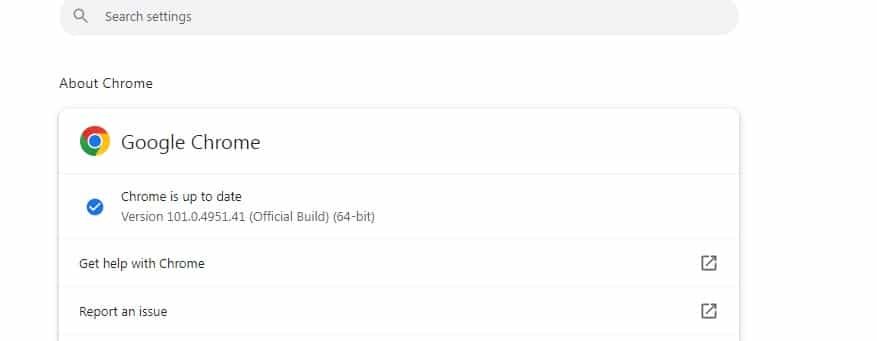
Another really easy way is to click the three dots in the upper right-hand corner of the browser. Then click “Help” then “About Google Chrome”. From here you’ll be able to see the status of your browser. Many people forget to relaunch so the update never completely finishes. If your Google Chrome browser is updated, you’ll get a message like the one in the image below…