Mesh Wifi networks have become increasingly popular in recent years due to their ability to provide strong and reliable Wifi coverage throughout your home. But having a mesh Wifi network doesn’t necessarily mean you’re getting the best out of it. Here are some tips on how to maximize your mesh Wifi network performance.
Choose the Right Location For Your Router/Extender
The location of your router/extender is critical for ensuring maximum connectivity and performance. Generally speaking, the router should be placed in a central area of your home and elevated (e.g., on a bookshelf). Make sure that the router is not obstructed by any large objects or walls, as this could cause interference with the signal. Additionally, keep any other electronic devices away from the router as these can also interfere with the signal. I’m always floored when I see someone has put their router down in the basement (usually a laundry room or utility room) in a room in the far corner of the house surrounded mostly by concrete.
Firmware updates often contain bug fixes and new features that can improve your mesh network’s performance. Because of this, it’s highly important to regularly check for firmware updates and install them as soon as they become available. Most routers have the option to enable automatic updates so make sure this is enabled if possible. Don’t be one of those people who ignore these updates either! Don’t procrastinate on the security and performance of your tech!
Quality of Service (QoS) settings allow you to prioritize certain types of traffic over others on your mesh Wifi network. This means that if you want certain applications or devices to receive priority access over others, you can configure QoS settings accordingly. For example, if you want gaming traffic to receive priority access over streaming video traffic, you can configure QoS settings accordingly. This will ensure that gaming clients get faster speeds than streaming clients even when there is heavy usage of both services simultaneously.
Most people with mesh Wifi router systems are unaware of the amazing technology they have at their fingertips. Just implementing these few tips above will really help you boost the performance (and purpose) of your router system.
Mesh Wifi Network: How Do I Know If I Need It?
Do you ever feel like your home Wifi just isn’t good enough? Maybe your coverage is spotty, speeds are slow, or you always seem to be arguing with family members about who gets to use the internet?! If this sounds familiar, then you might need a mesh network. To recap, a mesh Wifi network is a type of Wifi system that uses multiple routers (or hot spots, or Wifi points) to extend the reach of your signal. This means that you can say goodbye to dead spots and dropped connections. Additionally, mesh networks are generally very easy to set up and use, making them a great option for those who are not tech-savvy. I can think of dozen reasons why you’d want a mesh router system. If you’re fed up with your current Wifi situation, a mesh network may be the perfect solution.
However…there are a few reasons I can think of why you wouldn’t need a mesh network. Just because they are awesome doesn’t mean they are a great fit for everyone. First of all, if you live in a small apartment and don’t have very many devices that need to be connected to the internet, you probably don’t need a mesh router system. Secondly, if you’re not really a heavy internet user (you mostly just use it for email and social media), you can ditch the idea of a mesh router system. And finally, if you already have a pretty good Wifi signal in your living space with your current setup, there’s really no need to upgrade to a mesh network. Mesh networks can be great for people who have large homes or a lot of devices that need to be connected to the internet, but in some cases, it might not be necessary.
Mesh Routers I’d Recommend
There are many new mesh routers on the market these days, and it can be tough to figure out which one is right for you. Do you need something that’s super simple to set up and use? Or do you want a router with more features and customization options? Maybe one with robust parental controls? Maybe you want one with ample control over devices? No matter what your needs are, here are my top picks for mesh routers:
Google Nest Wifi
I absolutely love Google Nest Wifi. It has great coverage (up to 6K+ square feet), has great connections, the ability to create a guest network, decent parental controls (I admire the SafeSearch from Google), can handle up to 200 devices connected to your network, and allows me to prioritize and throttle devices connected to my network. Google’s new Nest Wifi Pro is a quality upgrade from their previous versions. Google’s new Nest Wifi Pro is reliable, easy to set up, and provides a stronger and more consistent signal than its predecessors. Plus, it looks great and comes in a variety of colors to match your home decor. And most importantly with all this new and improved technology, the Google Nest Wifi Pro is affordable, making it the perfect choice for anyone looking to upgrade their home Wi-Fi. Some vital key features of this newest version:
Supports Wi-Fi 6E
Has speeds over 5 Gbps (if your internet provider can deliver those speeds)
Tri-band connectivity (super enhanced 2.4, 5, and 6 GHz)
Another mesh Wifi I think is a quality option is the EERO Pro. There are a ton of awesome features, but my favorite is the simplicity of setting it up. Out of the mesh router systems I’ve worked with, EERO Pro is the easiest to get going out of the box. Aside from ease of use, it has great connectivity, supports fast speeds (up to a gigabit), creates a strong and reliable network, and supports Wifi 6. The EERO Pro also has one of the most robust parental controls BUT you’ll need to pay an additional monthly fee to unlock those incredible parental control features.
This is a fantastic mesh router system that has largely flown under the radar in terms of popularity compared to the EERO Pro and Google Nest. It has a plethora of features that impress me. The Gryphon AX is easy to use and install, easy to manage, supports blazing fast speeds, blocks ads, has great parental controls (without the extra fees), blocks ads, and has security features that really do protect the devices connected to your network. We have an entire review of the Gryphon AX router with all the good details.
Mesh wifi networks offer great coverage throughout your home but they need to be properly managed in order for them to perform at their best. There are some that offer that “set it and forget it” style, but then you’re really not utilizing the mesh router system to its full potential. By taking advantage of quality of service settings, updating firmware regularly, diving into those unique features, and utilizing an optimal location for your router/extender, you can really maximize your mesh wifi system your mesh wifi network performance and enjoy fast speeds wherever you are in your house!
Think back: do you remember when artists would release CDs and our friends would run to the store, buy one, bring it home, and copy it for everyone for free or at a cheap rate? Can you remember when the computer app Limewire came out and everyone would play all the new music hits? Back then, pirated music, movies, and software were foreign, but then again, the internet was also pretty foreign.
Pirating 101
What is pirating? For those who know less about pirating, let’s break it down. Pirating is the illegal download, distribution, and copying of any software, music, program, etc., to which you don’t own the rights. Technically, when a song is played on the radio, and you record it for a ringtone or playback, that’s illegal. Back in the day, we recorded songs on cassette tapes from the radio to give to our boyfriends and girlfriends. Guess what? Illegal. You can not and should not participate in pirating. Period. You can use BitTorrent, a communication protocol for peer-to-peer file sharing (P2P), which enables users to distribute data and electronic files over the Internet. This is a legitimate file transfer system as long as the content can be downloaded or uploaded legally. As with any upload and downloading system, there are pitfalls.
Pirating Pitfalls
The internet is full of different sites claiming “free downloads” for music, videos, and other software. Even torrents, though legit, can still give users massive problems like malware, viruses, hacking, scamming, and more. Pirating pitfalls can cost you your email, social media accounts, and even your identity. And for what? That new Lizzo song you’ve been dying to hear on repeat? Definitely not worth it. (No offense, Lizzo.)
Malware and pirating easily go together. Say you pick a new movie to illegally download, thinking it’s coming from a free and trusted site for downloads. You’ve checked some reviews and everything sounds reasonable or so you thought. The malware starts immediately upon “downloading,” infecting your computer programs, and software, and moving to all your stored passwords for your accounts, including your tax information and identity.
Hackers are getting smarter and using SEO practices to “up” their websites on Google and other search engines. The location a website ranks on Google seems legit and more trusted; therefore, hackers are using these techniques to hurt users. Redline Stealer and RecordBreaker are nasty malware software that steals information including saved passwords and even screenshots. Meaning, downloading that new video could cost you your job, savings, home, and identity; all because you wanted to save a few bucks. We discuss ways to secure your smartphone from these hackers, so if you need a refresher–go!
Even if you miraculously survive the initial threat, there are plenty of backdoor malware entrances that hackers install to continue to infect your device. So even if you think you’re safe, you’re probably not. Pirating not only affects you, but it also affects the owner’s rights and income. If you’re not paying for new music, then the artist is getting less money. Pirating is stealing.
Legalities of Pirating
Let’s not forget to discuss the biggest pitfall of pirating: your consequences to the government. Copyright laws protect creators and the art they create. Digital and print media formats are all protected through copyright laws. Illegal downloading, distribution, and profit can not only gain you malware and viruses but also a large fine and jail time.
Yes, we did say jail time. You can find this information anywhere you search the internet. The RIAA, which is the music and recording industry, states that individuals who pirate software can receive up to a $250,000 fine, a felony on their record, and up to five years in jail. Just in case you needed a breakdown for you or as a warning to your children, friends, or loved ones.
Most adults these days who grew up near the internet’s birth, know a thing or two about piracy. Many of us had it drilled into our brains to never download anything, anything at all. However, as younger generations hop onto the internet via their smartphones, they might not realize the song or movie they downloaded for free, is actually stealing their data and using it against them–and their parents. Once again, you need to think like a hacker to avoid getting fooled. Even the newest phone editing and picture modifying apps might be secretly coded to infect your teenager’s phone. They bring it into your home, use your WIFI, and boom— your entire network is hacked.
Talk to your kids about pirated software pitfalls, and check out ways to protect your home’s devices and avoid viruses.
You may not realize it, but your credit card is one of the most important pieces of financial information you have. That’s why it’s so important to make sure you’re notified of all your credit card transactions. By doing so, you can keep track of your spending and make sure your account is in good standing. And it’s more than just about account spending too. You can save yourself a LOT of heartache and potentially money by enabling something as simple as a notification. Let me break down some important reasons why you need notifications for all your credit card transactions.
1. Keep Track Of Your Spending
It’s easy to lose track of your spending when you’re not keeping an eye on your account. With notifications, you can see exactly where your money is going and how much you’re spending. This can help you stay on budget and keep track of your finances. If you have a significant other that tends to spend, this can help you stay aware of their spending as well.
One of the benefits of notifications is that they can help you avoid fraud. If you see a charge on your account that you don’t recognize, you can immediately report it to your issuing bank. When this happens, time is of the essence. I’ve literally seen thousands go up in smoke in a matter of an hour. Adding a notification can help you avoid costly fees and potential damage to your credit score.
3. Stay On Top Of Your Account
In order to maintain a good credit score, it’s important to stay on top of your account. By getting notified of all your transactions, you can ensure that there are no late payments or other red flags that could lead to a negative mark on your credit report.
Perhaps the biggest benefit of notifications is the peace of mind they provide. When you know what’s happening with your account at all times, you can relax and rest assured that your finances are in good hands.
Notifications Aren’t Just For Credit Cards
Notifications are great for more than just your credit cards as well. You should definitely have notifications set up with your financial institutions as well (bank, credit union, etc). A very popular method of fraud is performing illegitimate ACH wire transfers. And it’s not just for fraud detection either. I love having them set up for account balance changes, transfer deadlines, and other important details like overdraft fees and penalties.
Popular Financial Scams You Don’t Want To Fall For
As a great general rule of thumb, you likely want to make sure that your finances are as stable as possible. Unfortunately, there are many people out there who would love to take advantage of that stability. The best arrow in their quiver: financial scams. If you aren’t extremely careful, you could easily find yourself the victim of one of these schemes. Financial scams are growing in popularity and becoming really common. Right now, almost every banking institution I belong to has a permanent banner in their app that warns of these scams. It’s important to be aware of the most popular scams out there and know how to avoid them. Here are a few to be aware of:
Debt Collection Scams
If you receive a call from an unknown number and they are demanding payment on something that doesn’t seem legitimate, don’t provide any personal information. Instead, do some research into the debt collector by looking up their license numbers or asking for written proof of what you owe them. If there is no evidence available online then it might be time to hang up immediately as this could lead to identity theft! Plus, don’t answer calls from “Unknown” numbers. That should be your first indication that something might be amiss.
Phishing
Phishing is a common crime where con artists use emails or texts that look just like they’re from banks, popular merchants, and others you may know. Phishing is one of the most clever and effective kinds of scams out there. They are easy to fall for as well. They try to get users into sharing bank account numbers among other things, which can immediately grant them access!
Imposters may try to convince you that they represent trustworthy, well-known, and authoritative entities like the county sheriff, reputable charities, or even the IRS. These imposters might ask for money by claiming their organization is running low on funds or you’re behind on your taxes and are being audited. Sometimes this call is just a scammer trying to find out personal information so they can later use it against you!
Be Proactive When It Comes To Your Online Action
Notifications are a simple and effective way to stay on top of your credit card usage. I’ll be the first person to admit that I can’t stand notifications. This is why you must be judicial in how many notifications you set up on your phone. By signing up for notifications with your credit card and your financial institution, you can keep track of your spending, avoid fraud, and maintain a good credit score. Most importantly, notifications give you a little peace of mind that comes with knowing exactly what’s happening with your account at all times. If you’re not already signed up for credit card and banking notifications, make it a high priority on your to-do list.
Are you getting too much spam in your message inbox? Do you dread having to sort through all of those messages to see if there’s anything important? Maybe you get spam calls after spam call (the incessant robocalls) and quite frankly hate answering your phone. Don’t worry…there are some great spam filtering apps out there that can help. We wanted to review some of the best options for iPhone and Android users. Whether you’re looking for an app to keep your inbox clean or just want to avoid getting spammed in the first place, check out the spam filtering apps we’ve tested!
How Big Of A Problem Is Spam?
Spam is a huge problem with our devices and email. For starters, it’s so annoying! Spam can also take up a lot of space on your hard drive (and cloud storage) and it can also clog up your inbox. In some cases, spam can also be very dangerous because it can contain viruses or other malicious software. Spam can also be used to phish your personal information. You know spam is a problem when Google (more specifically Gmail) is making spam filtering one of its main concerns on their platform. How do you fight spam? You can install an anti-spam plugin on your device or you can use a spam filter in your email program (more on those below). You can also just delete spam when you see it. But the best way to fight spam is to be careful about the websites you visit and the emails you open. Don’t ever click on links in spam emails. Don’t open attachments from unknown senders. And if you’re ever unsure about an email, ask a friend (or family member) before you open it. One of my favorite ways to battle this spam problem is with a spam filtering app.
Best Spam Filtering Apps
Let’s just say you are walking calmly at the beach and you feel someone is constantly stalking you or peering around your shoulder. Wouldn’t that destroy your peaceful walk? Don’t you think that you’d be a little annoyed? This is how I feel about spam and robocalls. Spam calls and email are essentially doing the same thing. And these annoyances bombard your phones by offering an “exclusive sale” to increase the reach of the business.
How do we avoid these? If only there was something you could do. Here are a handful of effective spam filtering apps (for both iPhone and Android) that we checked out.
1. You Mail
The YouMail app is the best application that deploys smart technology to detect and filter spam. It alerts the user with “Out of service message” notifications.
Its algorithm detects the upcoming phone calls and matches them with a list of spam numbers (yeah…they have their own database of these pesky numbers). With a user base of 11M+, they no doubt have access to a plethora of numbers with the intent to do some spamming. Also, it asks the consumer for impropriety numbers while calling. Moreover, it filters missed calls. Most interestingly, you can make a personalized voice message. It will pop up whenever a call takes place. Some of the features that all plans include are:
Robocall protection
Spam call protection
Caller ID
Custom greetings
Custom call blocking
Furthermore, it offers premium services like auto-attendant, automatic recordings, call routing, free conference calls, and more. YouMail is one of the most robust spam filtering options out there. They have plans for just about everyone. Their basic plan is free so you can get started and familiar with the app before signing up for any subscription or even giving them your credit card (something I absolutely love about the company).
Hiya is the next one I’d recommend just because the technology is smooth and Hiya checks every box on what a spam filtering app should do. . It has a spam filtering option of auto-blocking that automatically detects and blocks the calls you want to avoid. Their technology is so crisp that their integrations are non-intrusive and won’t slow your devices down.
It particularly focuses on the first six digits of the calling numbers Since spam numbers often follow a specific copy of these fixed numbers. So, it’s proved helpful for filtering spam calls and messages. For personal use, I’d still give YouMail the edge because it’s tailored for the masses. BUT…if I was a small business (or self-employed), some of the data insights that Hiya provides, like answer rates, call duration analysis, fraud calls auto blocked, and user reports are applicable more for a business.
For personal use, RoboKiller is neck and neck with YouMail. RoboKiller has the best technology. They’ve won all the awards. They have a massive user base. They have the biggest global scammer database. They have the best customizations where users can personalize every aspect of what kind of calls or texts come in. The app interface in my opinion is a little more intuitive and user-friendly compared to YouMail. RoboKilller is a premium service for sure. But…YouMail essentially does the same thing (just as effective) as RoboKiller. Now…RoboKiller is definitely the category king in this niche, but their premium plans are about twice the price of YouMail. If you are looking for an app that blocks spam calls and text messages, opt-in for YouMail. If you want all the bells and whistles and you’re into the technology and insights…you’ll love RoboKiller.
If you’re still on the fence here’s what I’d do: download RoboKiller (free trial for seven days). Once the 7 days are up, I’d download YouMail for a week. After that 7-day use is up, do a simple compare and contrast and see which one fits your style. What I’ve found with free-trial software is I usually wait a week or two after the trial is up. Usually, within a week or two, the company will sweeten the deal and offer me a yearly package at 50% off.
Nomorobo app offers premium services with a free trial of 14 days. It identifies calls and messages from robocallers and blocks them. Even before you hang up, it will hold up your calls.
Comparatively, it is the easiest to use. It just oozes simplicity and I love that about Nomorobo. All you have to do is go to their website and fill in your details. Then you will get an email to set up and activate Nomorobo. Now spam calls can’t bother you while working hard 😉 This app can also offer additional options for rejecting calls or leaving a text message.
Here is another quality app you might have come across for blocking telemarketers, phishing, and spam. It has helped about 12 million people worldwide within a few seconds. Call Control has a Community IQ feature that helps to create Do Not Call complaints and report numbers. I love that component, but one reason I wanted to add Call Control to this list as one of the best spam filtering apps is because of its integration of scams claiming to be government entities. Having the most up-to-date info on IRS tax scams and having that be part of their features is worthy of having Call Control make this list. Other than this tax scam feature, Call Control is a rather nominal spam filtering app. It does a great job blocking calls, but it doesn’t block text messages which I think has to be the main feature for users in this niche.
Are you having trouble with your Chrome browser taking up too much memory? Maybe it’s running sluggish and glitchy. You’re not alone! Many people make the mistake of diagnosing browser issues as computer issues. But…before you fall into that trap (and run off to buy a new computer), you should rule out if your browser is running slow because of…well…your browser. We wanted to dive into some tips on how to fix the problem of a slow Chrome browser.
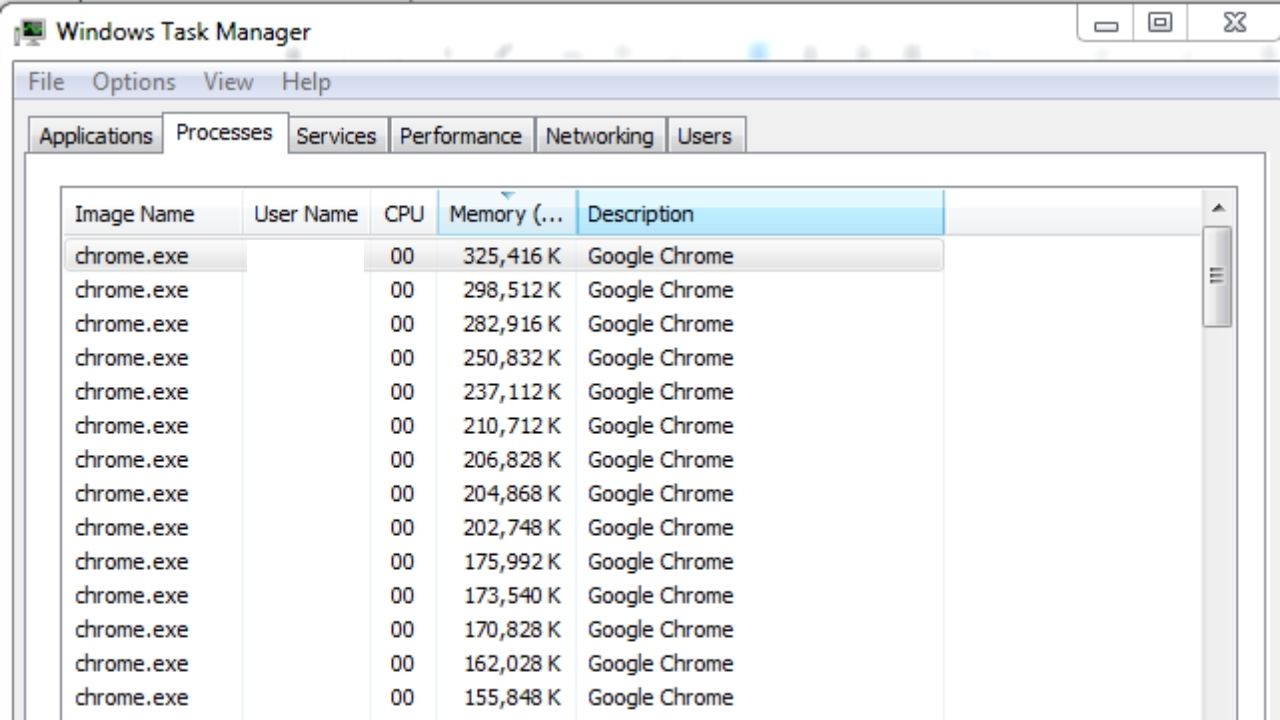
Google Chrome is one of the most widely used web browsers. Known for its speed, performance, and user-friendly interface, Chrome is also famous for consuming a lot of memory, which consumes most of your computer’s resources. You can check the high memory consumption of your computer by accessing the task manager and checking the memory usage. Chrome may be running in multiple processes and consuming most of its memory. In fact, I just ran Windows Task Manager on one of my test computers to simulate how a normal person uses the web with Chrome’s browser. Here’s what it looks like…
Yikes! That’s a lot of memory! I’m willing to bet yours looks eerily similar too! No judgment here at all. In this article, we’ll walk you through this conundrum and help you understand why Chrome is consuming so much memory and how to solve this problem.
Why Is Chrome Using So Much RAM?
First, you need to learn why Google Chrome uses so much RAM and storage. The main reasons are:
RAM usage often grows when opening a live streaming platform, cloud software, or social media site.
Google Chrome divides the content of a web page into different processes, so if one content fails, the entire tab will not stop responding. Creating multiple processes requires dedicated RAM space.
Extensions that interact directly with website content, such as ad blockers, YouTube extensions, grammar and spell-checkers (we’re looking at you Grammarly), and social media extensions continue to work in the background. Some of these browser extensions (although super nice and useful) are resource hogs.
Some websites and extensions may consume RAM, CPU, and network for cryptocurrency mining or other similar functions
These are some of the more notable reasons Chrome is forced to use more computing resources. Don’t worry about it! There are ways to reduce Chrome’s memory usage.
You can use two main workarounds to fix Chrome’s memory issues: Hardware solution where you must increase physical memory by adding memory sticks to the motherboard. This is an option, but one I wouldn’t recommend because it can be pricey (and most of the time not needed); and a software solution. There are several software solutions explained below. Let me walk you through some of them…
1. Disable Unwanted Extensions.
One of the causes of memory spikes in Google Chrome is extensions. Not only does the browser’s memory footprint increase, but the extension can also leak memory because it requires additional resources to run the extension. One way to prevent an extension from consuming all memory is to disable it. Here’s how.
Start by opening your Google Chrome browser cleanly. Click the three dots in the upper right corner. Hover over More Tools and select Extensions. This will open a list of extensions that your browser can also access. Click the Disable slider to disable them all. Restart your browser and check how much memory Chrome is currently using. If it’s low, it could be at the root of the problem. How to manually disable all Chrome extensions
You can go one step further and re-enable the extensions one by one to see if one is using more memory than the other and if there is a memory leak. Only enable necessary extensions to keep RAM usage low on the extension side. I disable extensions all the time. Don’t worry, you can quickly enable them on command.
One of the main reasons Chrome uses too much memory is that you’re keeping multiple Chrome tabs open. I get it…you like to have a ton of them open because you’re most likely using those tabs in conjunction with other tasks. Personally, I think this will become an even bigger issue as more and more of our daily tasks (both personal and business) are being performed in the cloud. But I digress. To speed up system memory, you need to close all unused tabs in your Chrome browser. After that, the memory will be significantly improved.
3. Update Chrome Regularly
Like any other software, Chrome needs to be updated regularly to work best. Usually, when you close and reopen your browser, Chrome updates will run in the background. However, if you haven’t closed your browser for a long time, you may also see a visual reminder.
4. Performing A Malware Scan
Changes made by some types of malware or adware can also cause memory issues. Therefore, it is recommended that you use antivirus software to scan your computer for viruses. I love Chrome’s built-in “Clean Up Computer” feature. Just type “chrome://settings/.” in the address bar, then type “Clean Up”, and then click “Clean up computer”. Click “Find” to start the process.
5. Use Google Chrome Extensions To Reduce Memory Usage
The irony of adding another Chrome Extension to help solve an issue caused by Chrome extensions is just funny when you think about it. Nonetheless, a few of my favorite Chrome extensions to help reduce memory usage and improve the browser’s performance are below.
OneTab:
One of my favorite tab management extensions that will save you a ton of PC memory. This is widely used and is very effective at clearing all that waste and clutter caused by normal Chrome functions.
Looking to discard background processes from your tabs? Memory Saver is the extension that automates the task of getting rid of Chrome tabs you don’t use. It has a very light footprint on your computer resources which is another reason this is a favorite.
This is a must-have extension if you’re one of those people who like to have several or more tabs opened all at once. This extension helps you manage your tabs effectively and improves your browsing experience.
Chrome is a very memory-hungry browser. However, as mentioned it is possible to drastically improve your experience using Chrome’s browser so you can help fix extensive memory usage issues.
BONUS: Quick And Easy Ways To Speed Up Your Browser
There are a few quick and easy ways to speed up your web browser. One of the most effective ways is to clear your cache. I know it sounds too simple. And you might be rolling your eyes, but this little hack works. Your cache is a temporary storage location for files that your computer accesses frequently. Over time, it can become filled with outdated or unnecessary data, which can slow down your browser. Your web browser’s cache can be a serious clutter component for your web browser. To clear your cache, go to the settings menu in your browser and look for the option to “clear cache” or “delete temporary files.” Clearing out your cache on a regular basis can really help keep your browser running smoothly. As a general rule of thumb, I’d say clearing your cache once a month or every month will suffice. If you are someone that is heavy on web use, you might consider doing it twice a month.
Another way to speed up your browser is to disable plugins or extensions that you no longer use. In fact, this is why it’s my #1 hack for fixing Chrome browser issues. These unwanted or unused plugins can also take up valuable resources and slow down your browser.
Finally, make sure you are running the latest version of your browser. I know I mentioned it above, but it bears repeating. It’s very EASY to do, yet a lot of people don’t do it regularly so I feel the need to reiterate this important way to speed up your browser. And this isn’t just for Chrome either. Chromium, Microsoft Edge, Opera, Brave, etc…each of these browsers should be updated often. Outdated software can cause all sorts of problems, including speed issues. By following these simple, quick, and easy ways, you can speed up your web browser and improve your online experience.
When it comes to storing your family’s photos, videos, and just about any digital media, you’re probably wondering which is the best option. NAS or cloud storage? Both have their pros and cons, but which one is right for you? Both cloud storage and network-attached storage are increasingly growing in popularity. And both of them are great for storing digital media and a lot more. We take a deeper dive at the basics of both options and help you decide which is best for you.
NAS vs. Cloud Storage: An Overview
I could write a novel on both these kinds of storage technologies. First off, I think both are great. I’ve talked about cloud storage devices I love, and I’ve reviewed my favorite NAS device and when comparing them it can be difficult. We all have different uses and reasons for using storage technology. For example, when it comes to cloud storage I love that you can store your data in the cloud without any technical knowledge, unlike NAS drives. It’s so EASY! The NAS drive user must manually set up and secure the drive. And you might be thinking ‘That sounds like a lot of work and technically I’m not up to that.’ BUT…it really isn’t that bad AND the NAS I love to use (Synology’s Diskstation comes with great how-to videos). I get it, users may not find this suitable, and having to do these extra steps might scare them away. But in some regards, this small nuance doesn’t create that much disparity between which storage technology is better.
Despite their differences, most users rated both NAS and cloud storage as excellent. Let’s get into this storage technology comparison a little more…
Network-Attached Storage (NAS)
Network-attached storage (NAS) is an internet-connected data storage device. The hard drives in the device are usually removable or replaceable. A NAS is a great way to store a family’s (or a small company’s for that matter) videos, pictures, games, programs, and even legal documents. In a way, NAS is kinda like the digital version of the security box you have in your closet where you store all your important documents.
Due to the native software of most network-attached storage devices, you are primarily allowed to access and share your files using any web browser or app.
On the other hand with cloud storage, you access your data through the Internet. The application only requires a PC, laptop, or mobile device. Storage of data anywhere, anytime, is the main value proposition of cloud storage. Users can quickly increase storage capacity by paying service providers a little more on their monthly plan. Business enterprises can use them to store documents, images, and videos. They are also ideal for bringing music anywhere.
Many consumers consider Network Attached Storage a similar solution to cloud services and to be fair…those comparisons are valid. In addition to offering file and image editing features, cloud services are expanding beyond storage. Likewise, NAS is increasing its capabilities as well. Consider these key points before choosing.
Ease of Use
While NAS devices are becoming more user-friendly, consumer-oriented products still can’t compete with cloud services in terms of ease of use. As a media server, NAS is essential for streaming and accessing your videos, songs, and images. You can use most cloud services with desktop apps like any other folder. Even though setting up your NAS device takes a few extra steps and a little technical know-how, cloud storage gets the nod for ease of use. However, for those that would consider themselves novice technology users, ease of use would be a toss-up.
Data Sharing
Compared to cloud storage, NAS offers a greater degree of sharing accessibility. In my opinion, I think sharing via NAS is more secure as well. Connecting a NAS device to a TV, laptop, smartphone, or customized app is possible. You can access all the stored data by simply plugging it in. A NAS server is perfect for business teams working daily with large files and as mentioned…more secure.
On the flip side, many companies use cloud storage. And they can also access data with a few clicks using a laptop or smartphone. Using cloud storage, businesses can make the data-sharing experience seamless; all you need is a fast internet connection. With data sharing, it’s a slight edge over NAS primarily because it is more secure when it comes to data sharing.
Performance
Network speed and data usage directly affect performance or speed. The transfer speed of your files to a cloud server depends on your Internet connection’s upload speed. It may still be slower since most cloud service apps don’t use the maximum bandwidth. Large files might require syncing or uploading which can slow down performance.
Some NAS devices can be attached to your computer directly over Wi-Fi or Ethernet via a wired connection. It is a faster way to upload than through the Internet. NAS, however, may have slower read speeds than cloud services. Your Internet connection speed will restrict your ability to read files remotely from your NAS over the Internet. Again…when it comes to performance, I’d give a slight edge to NAS over cloud storage.
Storage Limitation
NAS devices can store a lot of data depending on how many drives they have. NAS storage increases as you add more drives. That’s one of the beauties of network-attached storage. Most network-attached storage devices provide storage in the 500GB to 4TB storage range at a fixed price. You can also request more storage if you need it. Additional hard drives can increase storage capacity up to 10TB. You can increase storage, but you most likely will need more hardware.
NAS storage has a higher storage capacity, but cloud storage has other benefits that exceed it. Streamlined maintenance is the main advantage of cloud storage. Cloud storage is usually free upfront, ranging from 5GB to 15GB. I’m sure you all use Google Drive. The service provider can easily upgrade your storage once you run out. You do not need any additional devices. A point-and-click upgrade is all it takes. But in today’s digital ecosystems, 15GB isn’t that much. So the whole “free storage” schtick is running its course. In fact, I wouldn’t be surprised if in the near future 50GB is the new “free” standard. Hard to give the nod to one or the other when it comes to storage limitations. If you’re okay with being strapped to monthly fees for increased storage (and tied to the cloud storage if they raise prices in the future ~ which is inevitable), then cloud storage gets the nod. On the other hand, NAS storage devices are relatively cheap and it’s a one-time fee (the price of the product); for this reason, I personally would give NAS the edge in storage limitations.
Data Privacy Issues
Data privacy is a hot topic these days. We’ve covered it quite a bit on the site. With all the news about data breaches, it’s no wonder that people are concerned about where and how their data is stored. Which one of the data storage options is better for data privacy? Both NAS and cloud storage have their advantages, but NAS is generally better for data privacy.
With NAS, your data is stored locally, on a physical device that you own. This means that you have complete control over who has access to your data. With cloud storage, on the other hand, your data is stored on a server owned by a third party. This means that the company that owns the server can access your data and may also be required to hand over your data to government agencies if requested. And you also have the possibility of employees having access to that data as well. With NAS, you can encrypt your data so that it can only be accessed by authorized users. Cloud storage providers generally do not offer this level of security, but some do.
If data privacy is a concern for you, NAS is the better option. You’ll have more control over who has access to your data and more control to keep it safe from prying eyes.
NAS vs. Cloud Storage: The Verdict
So, which is the better option? It really depends on your needs and preferences. Both methods are effective, and many people choose to use both.
Whatever you choose, make sure you are aware of the features of the specific device or service you use. Data security and privacy are paramount when it comes to backups and sharing. Network-attached storage (NAS) allows multiple users to easily and securely access data stored on the NAS. One advantage of NAS is that it can be used without an internet connection. However, NAS can be a little more expensive upfront than other storage options and it requires some technical knowledge to set up and maintain. If you are leaning towards a network-attached storage device, I highly recommend Synology’s DiskStation.
One advantage of cloud storage is that it offers unlimited scalability (limited to what your service provides and you will pay for it as well), so you can easily increase your storage capacity as needed. Cloud storage can also be less expensive than other options and it doesn’t require any special technical knowledge to set up or use. However, cloud storage does require an internet connection to access your data and NAS is more secure when it comes to storing and sharing data. What do I recommend for cloud storage? I love Google Drive and Dropbox for cloud storage, but I love Western Digital’s My Cloud Home personal cloud storage. Yes, it comes with a device and you can get up to 20TBs of storage, but it operates more like your typical cloud storage vs a standard NAS device.